Understanding the Graduated Gross Commission Feature
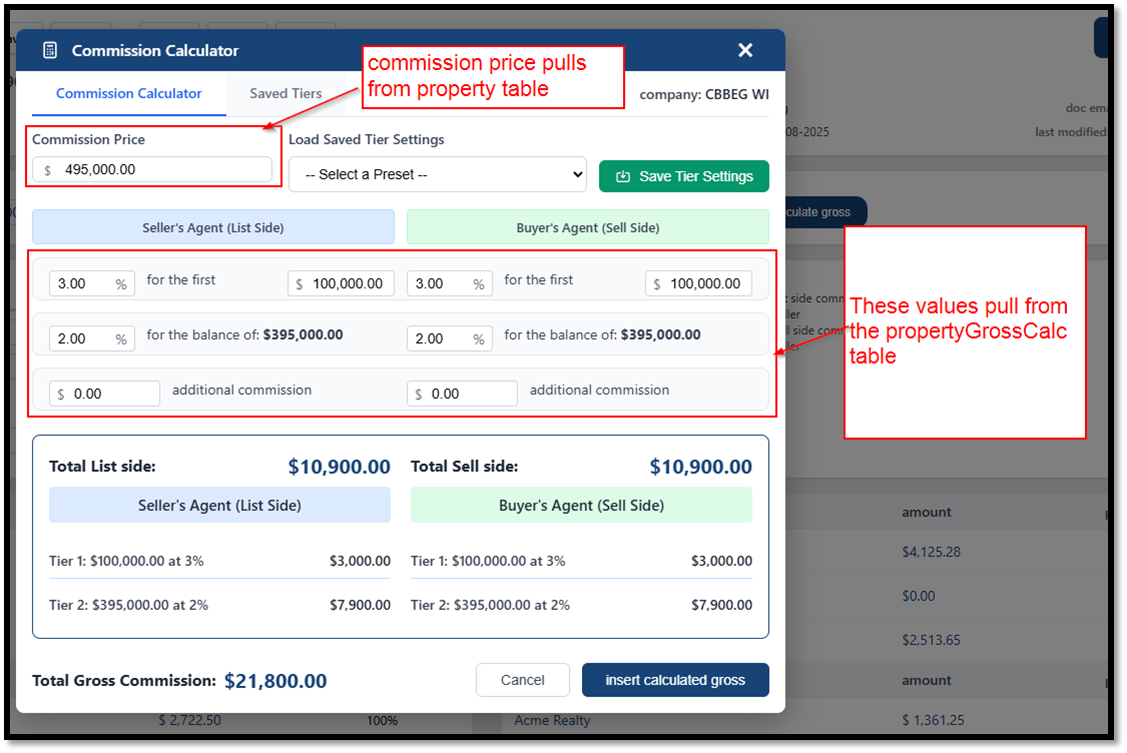
The Graduated Gross Commission feature allows real estate professionals to calculate gross commissions using tiered rates based on specific price ranges. This is particularly essential for Canadian clients and large brokerages requiring precise, multi-tiered fee structures.
- Tiered Commission Calculator
Users can apply different commission percentages to various portions of the sale price.
- Automatic Calculation: By entering a Commission Price and clicking Insert Calculated Gross, the system determines the commission for each price "tier" and sums them for both the listing and selling sides.
- Precision: Percentages support up to 4 decimal places (e.g., 1.3375%).
- Custom Adjustments: Users can enter Additional Commission amounts (including negative values for adjustments) for both the Seller’s and Buyer’s agents.
- Saved Tier Templates
To streamline workflows, frequently used commission structures can be saved as templates.
- Creating Presets: After configuring a calculation, users can click Save Tier Settings and provide a unique name.
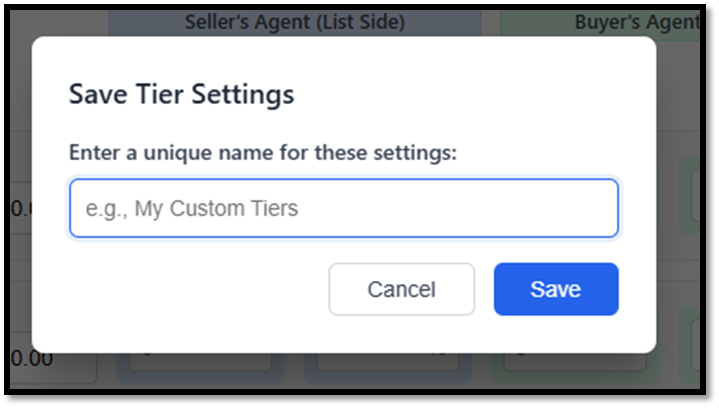
Loading Presets: Templates can be quickly applied to new transactions via the Load Saved Tier Settings dropdown.
1. Open with No Saved Tier Selected
2. With Saved Tier Selected 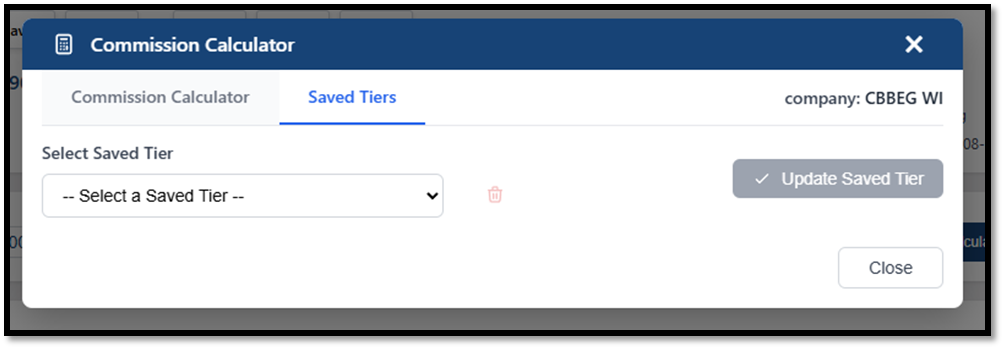
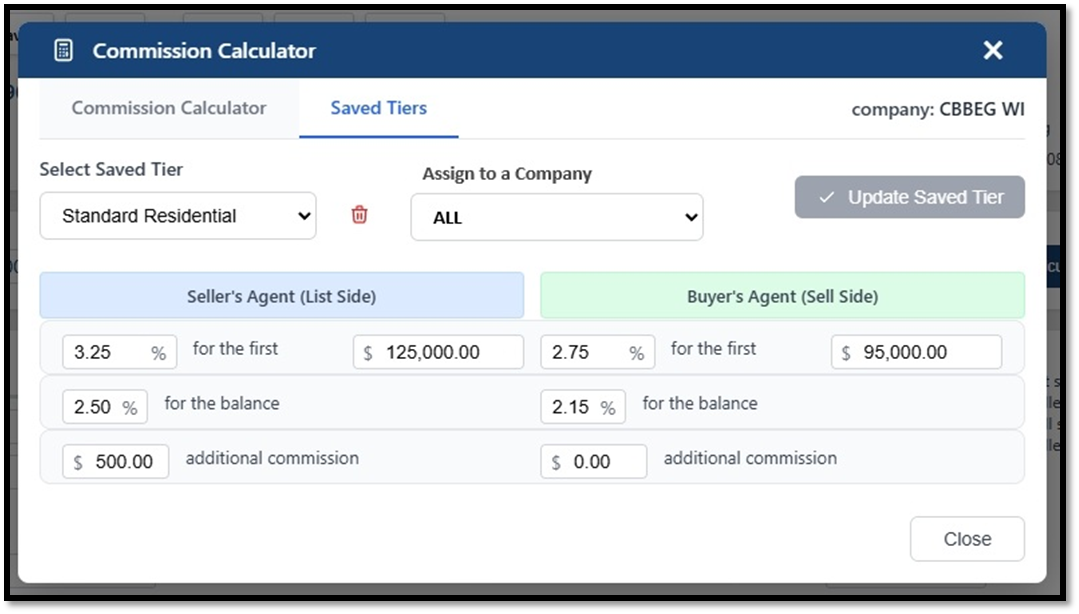
3. Company Assignments: Templates can be restricted to specific companies or made available to "ALL".
- Changes to Properties > Commission
a. Below the “tax collected” field are two new buttons:
- Graduated gross
Who pays commission?
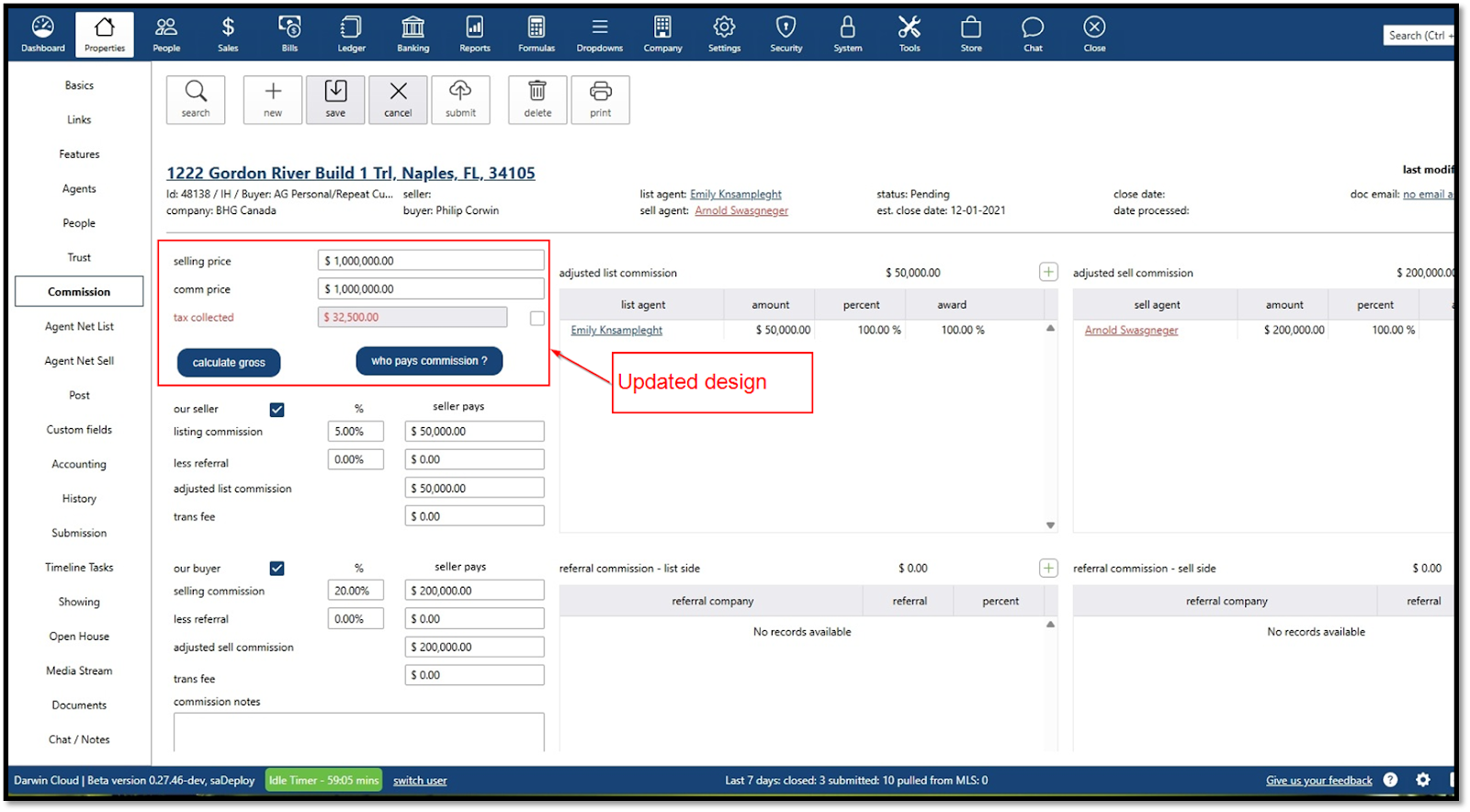
- "Who Pays?" Commission Tracking
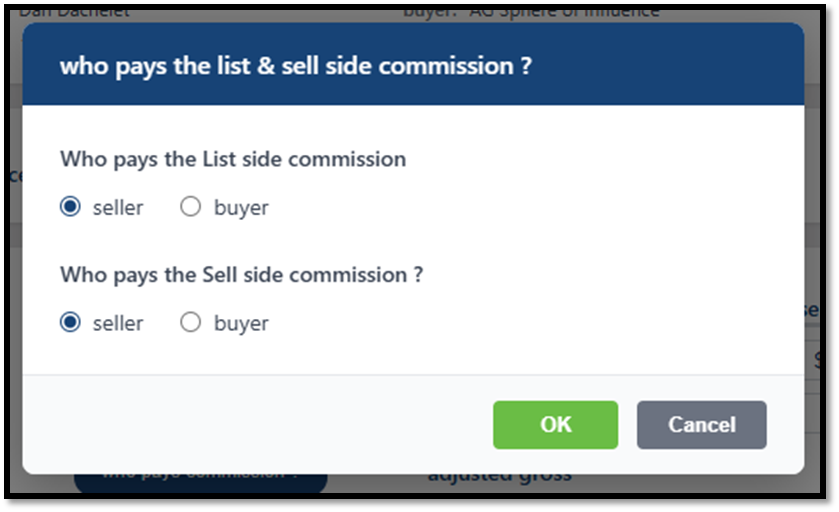
This sub-feature allows clients to track how commission funds are collected.Payee Selection: Users can specify if the seller or buyer pays the listing and selling side commissions.Dynamic Labels: Once selected, the Properties screen updates to show "seller pays" or "buyer pays" above the commission fields. If no selection is made, it defaults to "payor not assigned".
User Workflow
- Launch: Open the Properties > Commission screen and click the calculate gross button.
- Configure: Manually enter tiers or select a Saved Tier preset.
- Review: View the Commission Breakdown grid at the bottom of the pop-up to see the exact dollar amount generated by each tier.
- Apply: Click Insert Calculated Gross to save these values to the Property record.
Important Considerations
| Feature | Guidance |
| Manual Overrides | Users can still manually edit commission fields after using the calculator; however, these changes are recorded as overrides in the audit logs. |
| Price Changes | If the Sale Price changes after calculation, the commission does not automatically update. You must re-run the calculator to update the totals. |
| Mandatory Fields | For listing-side transactions, Buyer-side commission amounts must be filled in to save the record. |
| Data Visibility | This feature is optional. It can be enabled or hidden via Settings > Setup > Application Settings > Commission. |