| Overview | This feature automates your agent billing workflow. It runs on a schedule using your saved settings — and can also automatically charge agents their bill using their preferred payment method the moment an invoice is generated. |
What This Feature Does
Automatic Agent Billing replaces the need to manually run agent billing from the Sales > Invoices screen each billing cycle. Once configured, the system:
- Generates agent bills automatically on the day of the month you choose
- Applies your preferred billing criteria (recurring items, reimbursables, or both)
- Optionally charges agents automatically using their saved payment method
Part 1: Setting Up Automatic Agent Billing
The setup is located in Settings > Darwin AI Training > Agent Billing. There are two configuration screens.
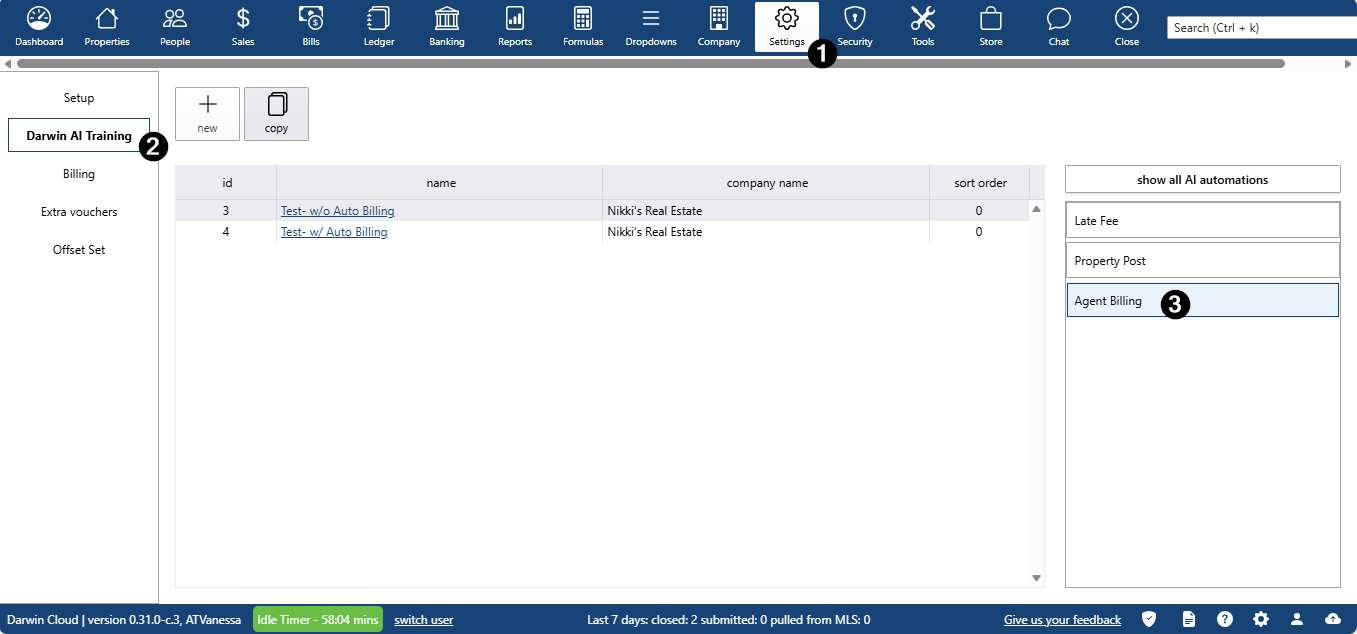
Screen 1 — General Setup
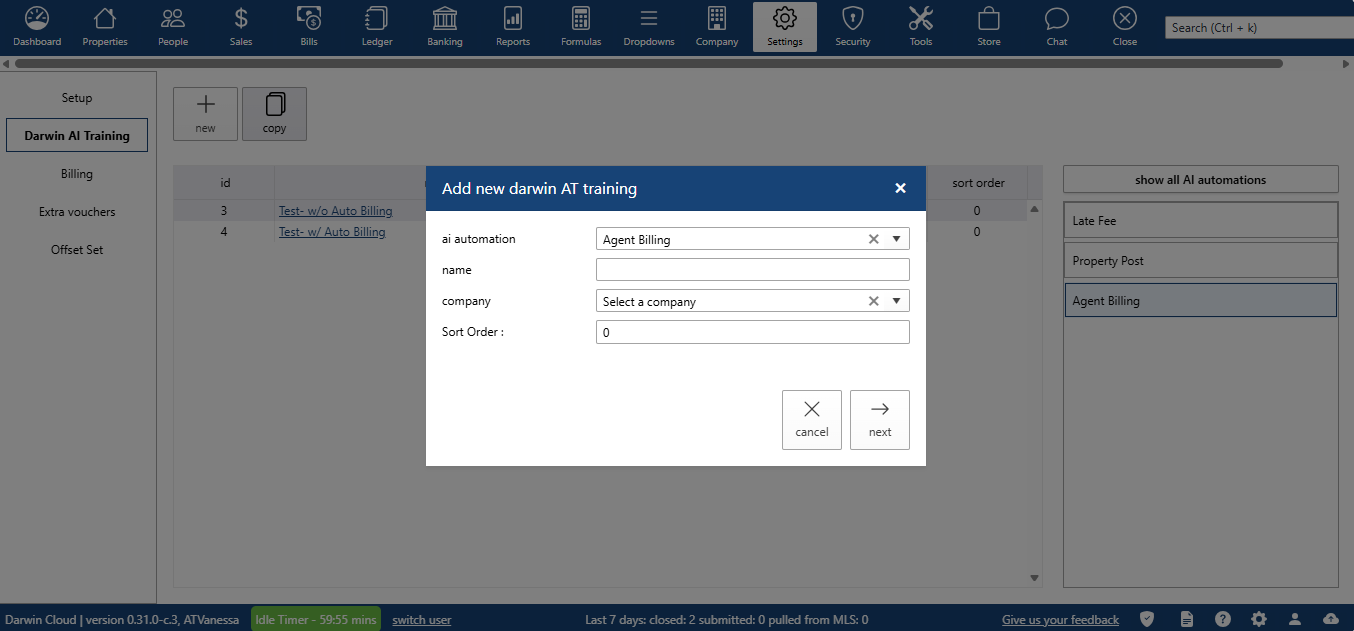
Use this screen to create and name your billing automation configuration.
| Field | Description | Type |
| AI Automation | Select the AI automation to associate with this billing setup. | Dropdown |
| Name | A label for this configuration (e.g., "Monthly Agent Billing"). | Text |
| Company | The company this billing configuration applies to. | Dropdown |
| Sort Order | Controls the display order when multiple configurations exist. | Numeric |
Screen 2 — Billing Details
This screen is where you define who gets billed, what gets billed, and when.
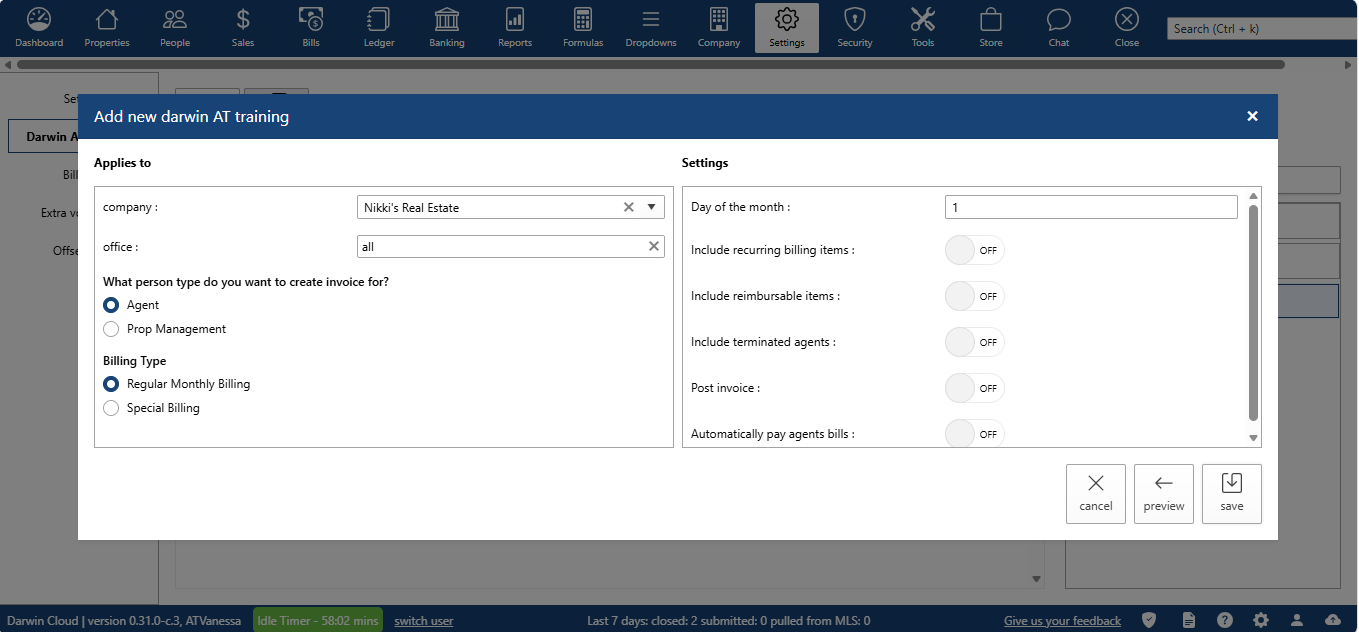
Applies To
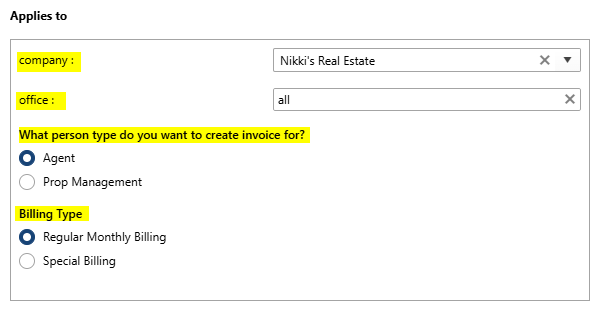
Use these fields to define which agents are included in this billing run:
| Field | Description |
| Company | Select the company for this billing run. |
| Office | Select one or more offices to include (multi-select). |
| Person Type | Select which type of person to bill (radio button selection). |
| Billing Type | Choose the billing type. If "Special Billing" is selected, an additional dropdown will appear to specify the special billing type. |
Settings
Use the toggles and selectors below to control billing behavior:
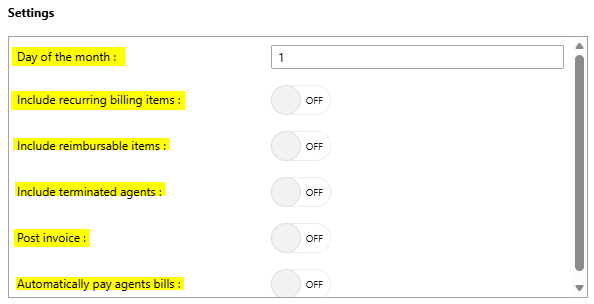
| Setting | What It Does | Type |
| Day of the Month | The day each month when bills are automatically generated. | Selector |
| Include Recurring Billing Items | When ON, charges recurring billing items to each agent's bill. | Toggle |
| Include Reimbursable Items | When ON, charges reimbursable items to each agent's bill. | Toggle |
| Include Terminated Agents | When ON, bills are also generated for terminated agents in addition to active agents. | Toggle |
| Post Invoice | When ON, invoices are posted automatically after generation. | Toggle |
| Automatically Pay Agent Bills | When ON, agents who have authorized autopay will be charged via their preferred payment method as soon as the invoice is generated. | Toggle |
Part 2: Automatic Agent Bill Payment
When the "Automatically Pay Agent Bills" toggle is ON, the system will collect payment from eligible agents immediately after their invoice is generated.
How Agent Authorization Works
Automatic bill payment requires each agent to opt in individually. Authorization is managed on the People > Payment Methods screen, which contains:
- An Autopay toggle — when enabled, the agent has authorized automatic payment of their bill.
- A Payment Plan field — agents can set a maximum dollar amount to be charged automatically per billing cycle. If the total balance due exceeds this amount, only the Payment Plan amount is charged.
How Payment Is Processed
For each agent with autopay enabled, the system will:
- Apply all available credits to the agent's bill first.
- Charge the remaining balance (or the Payment Plan amount, whichever is lower) to the agent's preferred payment method.
Repeat this process for every agent with autopay authorized.
| Example | An agent owes $500. They have $75 in credits and a Payment Plan limit of $300. The system applies the $75 credit, then charges $300 to their payment method — leaving a remaining balance of $125. |
Quick-Start Checklist
Before your first automated billing run, make sure the following steps are complete:
- Go to Settings > Darwin AI Training > Agent Billing and create a new configuration.
- Set the Day of the Month and choose which billing items to include.
- If using autopay, confirm that each participating agent has enabled the Autopay toggle on their People > Payment Methods screen.
- Optionally, have agents set a Payment Plan limit if they want to cap their automatic charge.
- Save the configuration. The system will run automatically on the scheduled day.