Advanced Tax Calculation Tools Support & Setup Guide for Real Estate Professionals |
Overview
This new feature now includes a comprehensive set of tax calculation tools designed to support regions with complex real estate tax requirements, including New Mexico, Canada, and Hawaii. These enhancements allow you to calculate taxes more accurately, manage local tax rates, automate tax voucher creation, and generate reports that track tax owed by location.
Two Methods for Calculating Tax Collected
You can choose how the system calculates the "Tax Collected" amount for each transaction. This setting is found at:
Settings → Setup → Application Settings → Tax Settings
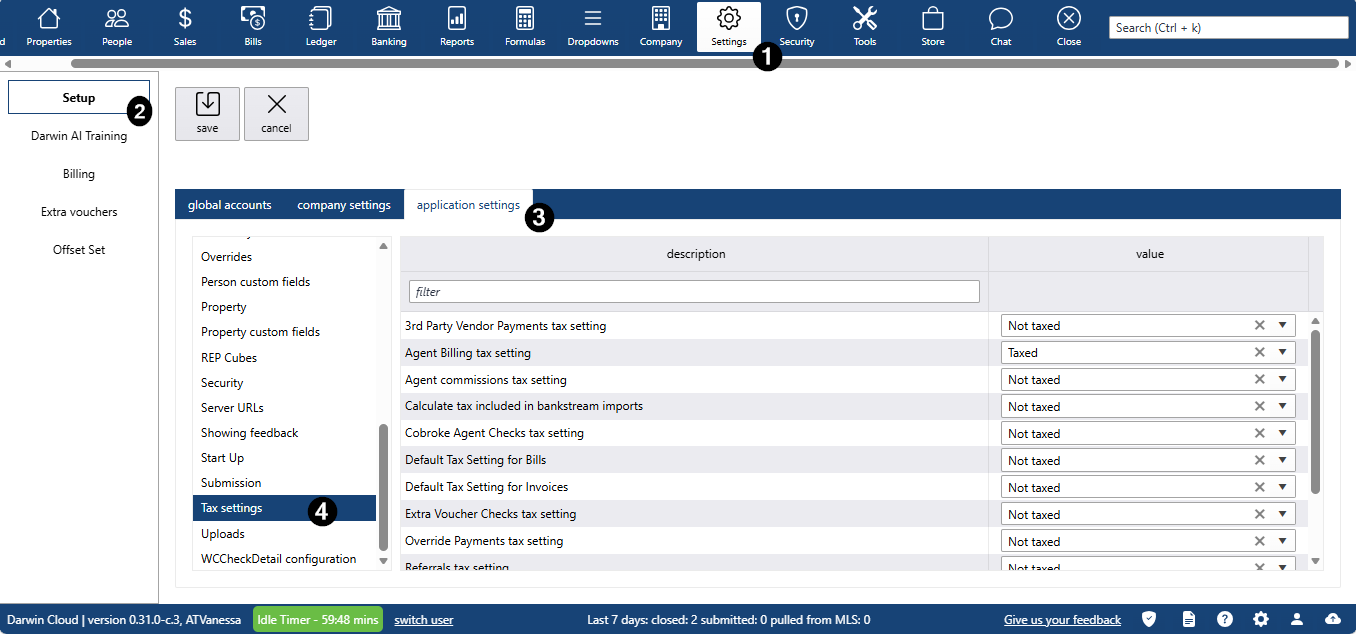
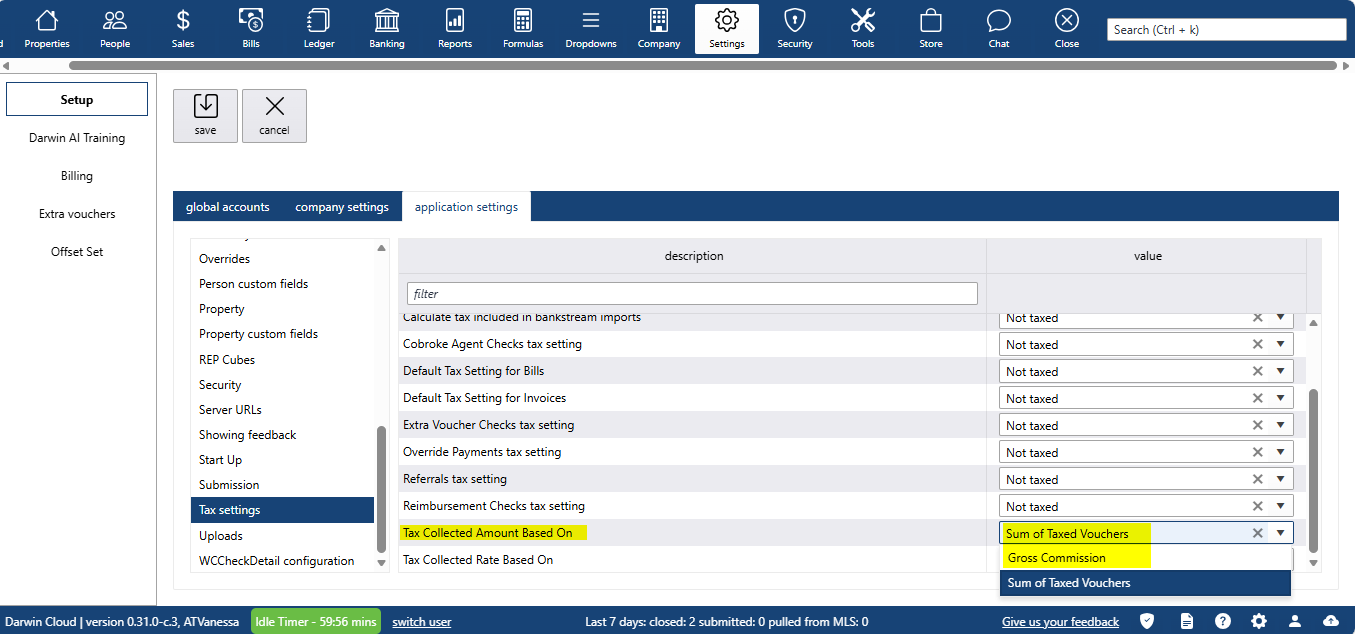
| Gross Commission | Sum of Taxed Vouchers |
Calculates tax based on the total commission for the transaction. Best for: jurisdictions where tax applies to the full transaction value. | Calculates tax only on vouchers that are not marked tax-exempt. This is the existing method. Best for: jurisdictions where only certain payouts are taxable. |
Two Methods for Determining the Tax Rate
You can also choose where the tax rate comes from for each transaction:
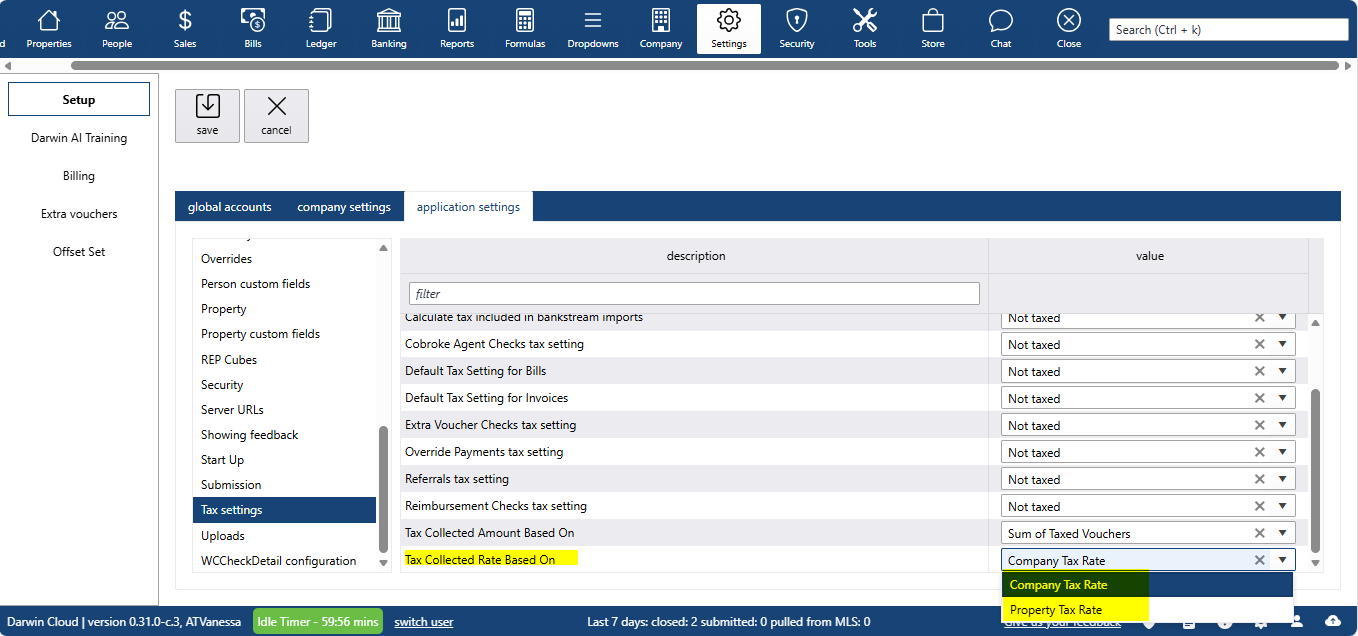
Company Tax Rate Applies your company's default tax rate to all transactions. | Property Tax Rate Applies the tax rate tied to the property's specific location code. |
New Voucher Features
The system now supports additional voucher capabilities to streamline your tax workflow:
- Automatic tax vouchers for Referral and Co-Broke companies
- A new voucher type for tax that has been collected but not yet paid out
- The ability to prevent tax vouchers from being created on Invoices and Bills
Support Guide
Answers to common questions about the new tax features.
1. What's the difference between calculating taxes on gross commission versus vouchers?
The voucher method (the existing approach) calculates taxes based on the actual vouchers being paid out, such as agent commissions, referrals, and similar items. The gross commission method calculates taxes on the total commission amount for the property, regardless of how it is distributed. This gives you more control over which vendors receive tax vouchers, while ensuring you collect the correct total tax amount required by your jurisdiction.
2. Do I have to manually enter tax rates for every property?
When using the Property Tax Rate method, you will need to select a location code for each transaction. A dropdown menu provides all available tax rates for locations in your area. Simply select the appropriate location code for the property, and the system applies the correct rate automatically. Your office can update these rates as they change, keeping them current.
3. Will this affect my existing transactions?
No. Your existing transactions will continue to process exactly as they do today. The new features are optional settings that you control. Once you switch, only new transactions will use the updated calculation method. All historical data remains unchanged.
4. What if I select the wrong location code for a property?
You can change the location code on the commission screen before posting the transaction. If the transaction has already been posted, adjustments can be made through the standard correction process. The system records which location code was applied to each transaction so you can always review what was used.
Important Notes
| Requirements & Restrictions |
| Location codes must be unique — duplicate codes are not permitted. |
| Tax rates must be stored with four decimal places. |
| Properties cannot be assigned a deleted location code. |
| Posting will be blocked if required tax data is missing from the transaction. |
| Any issues encountered during rollout should be escalated to the programming team. |