Overview
To eliminate manual entry of irregular agent fees, the Invoice Import feature in darwin.cloud is designed to reduce tedious data entry, minimize human error, and cut down on monthly billing cycle administrative overhead. Users can download a standard template, populate it with bulk charges, and upload it directly to darwin.cloud.
Part 1: How to Download the Template
To get started, users will need the standard system template.
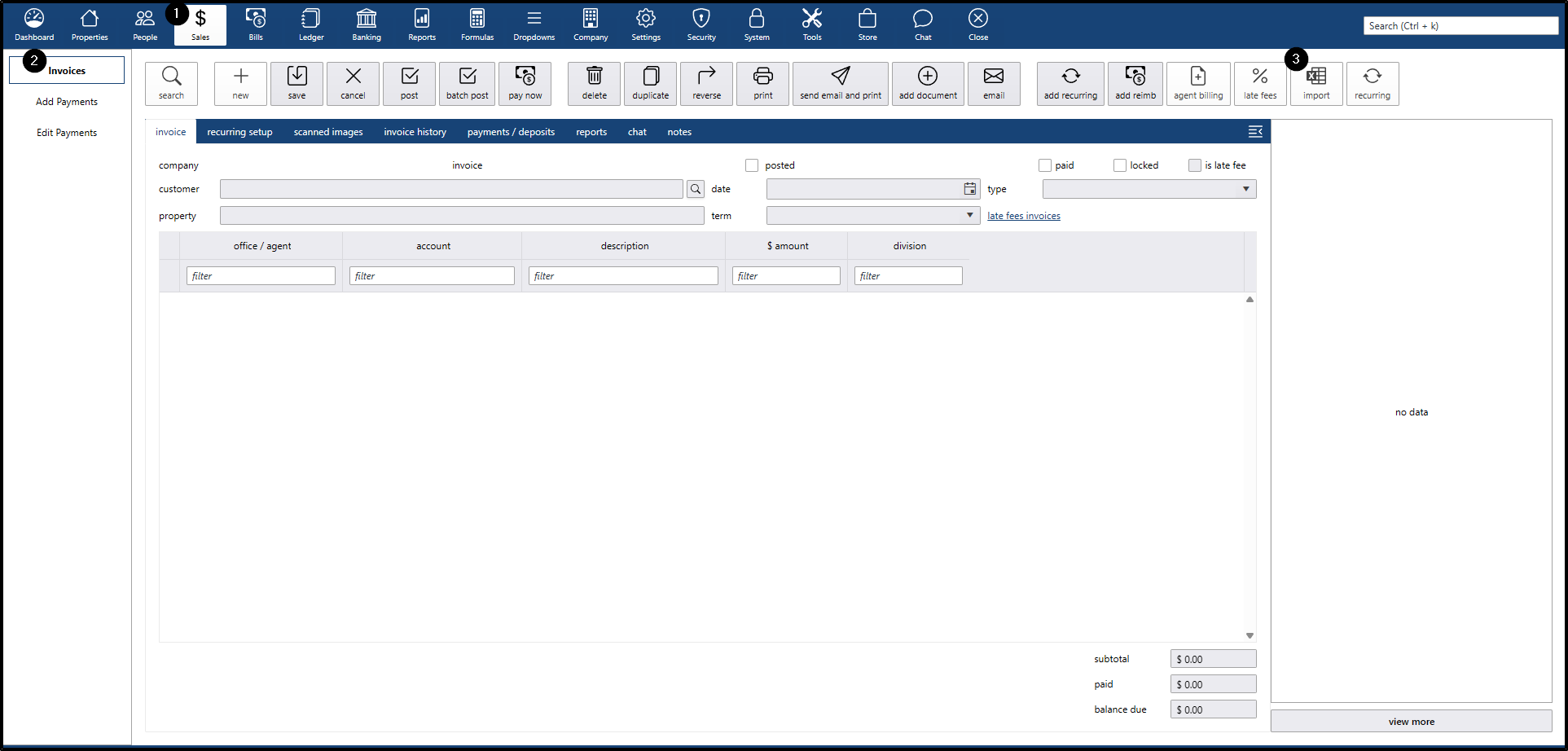
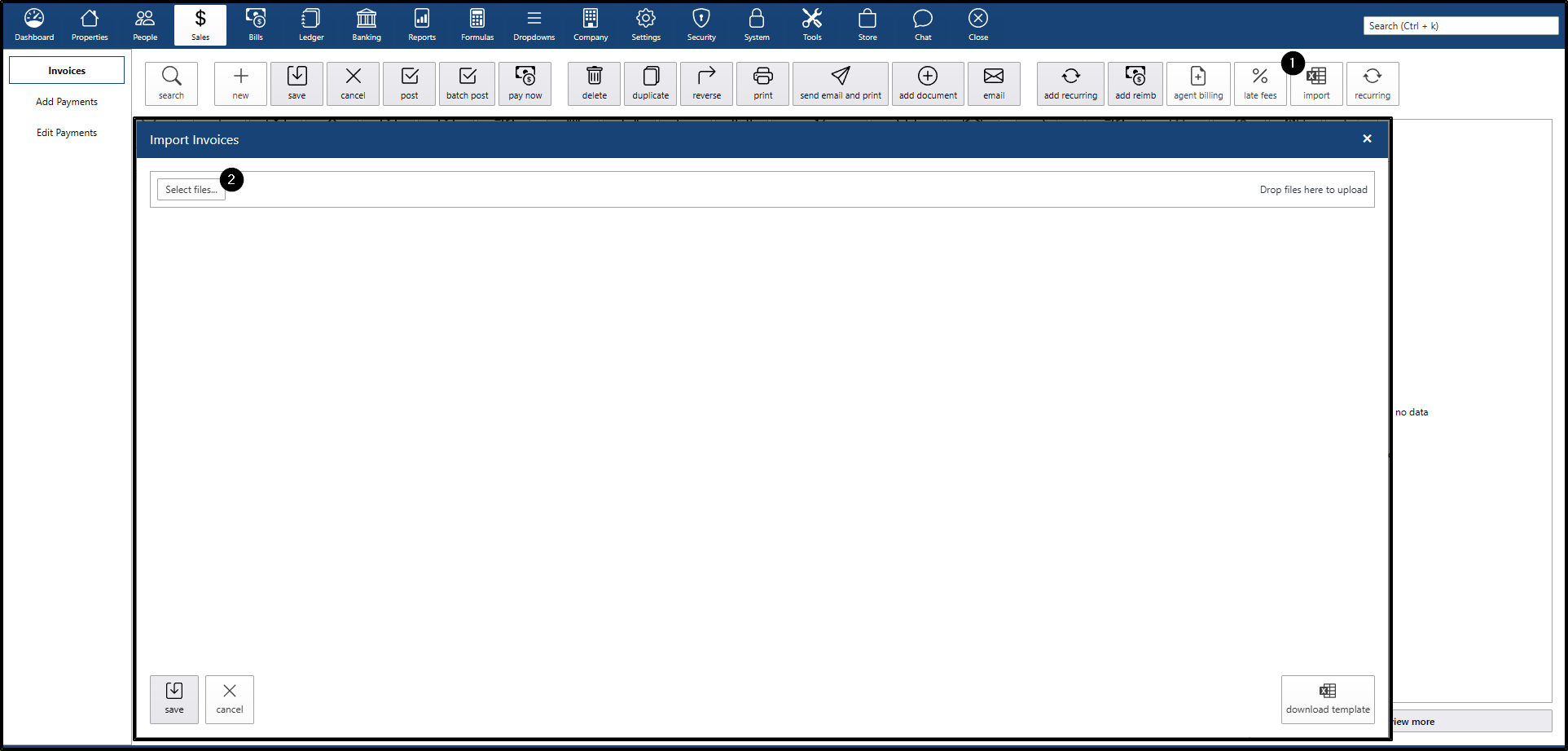
- Navigate to the Sales menu on the left sidebar.
- Click on the Invoices submenu.
- Click the Import button in the top right.
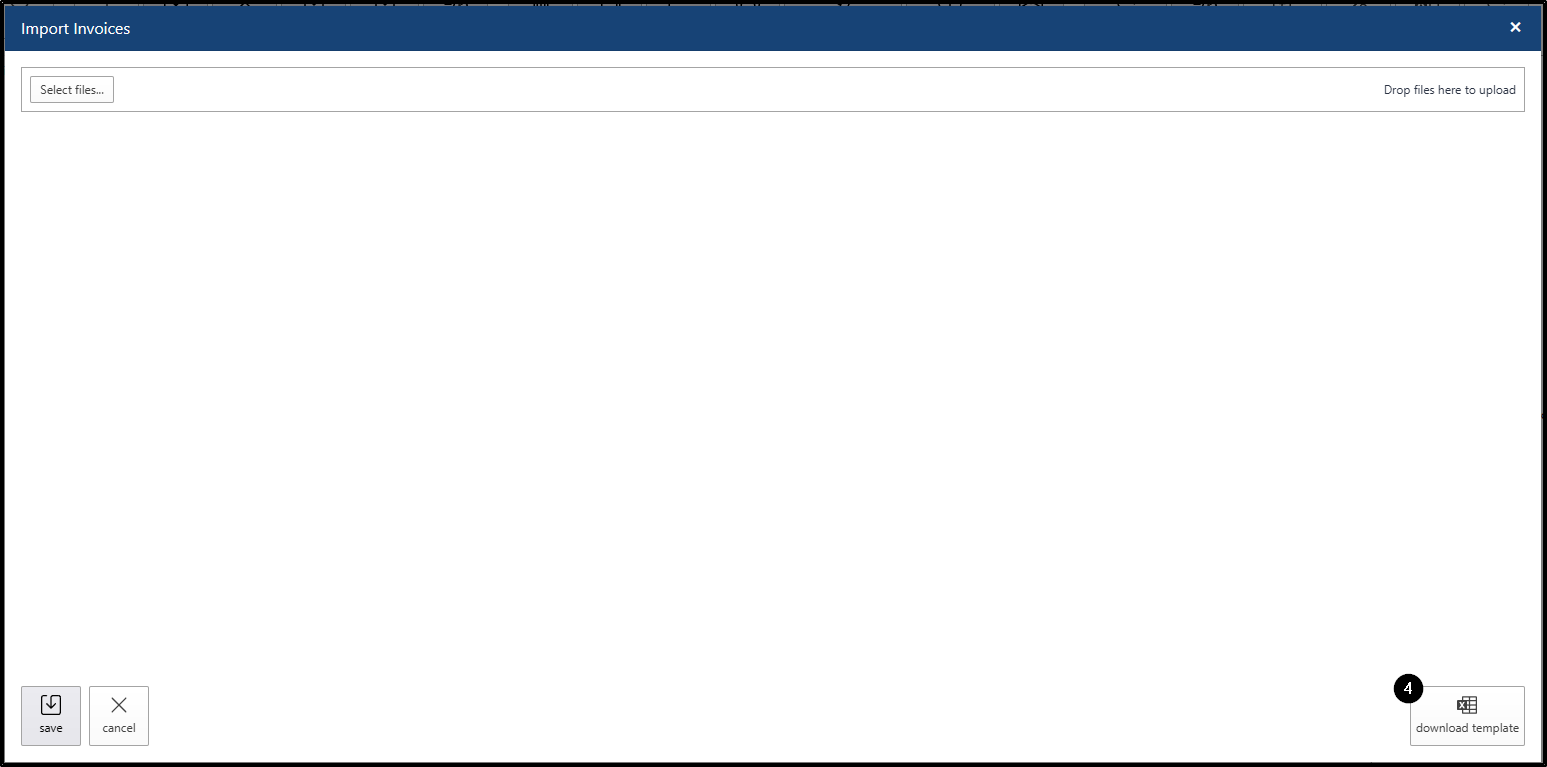
- In the pop-up window, click Download Template to save the Excel file to the local computer.
Part 2: Filling Out the Template
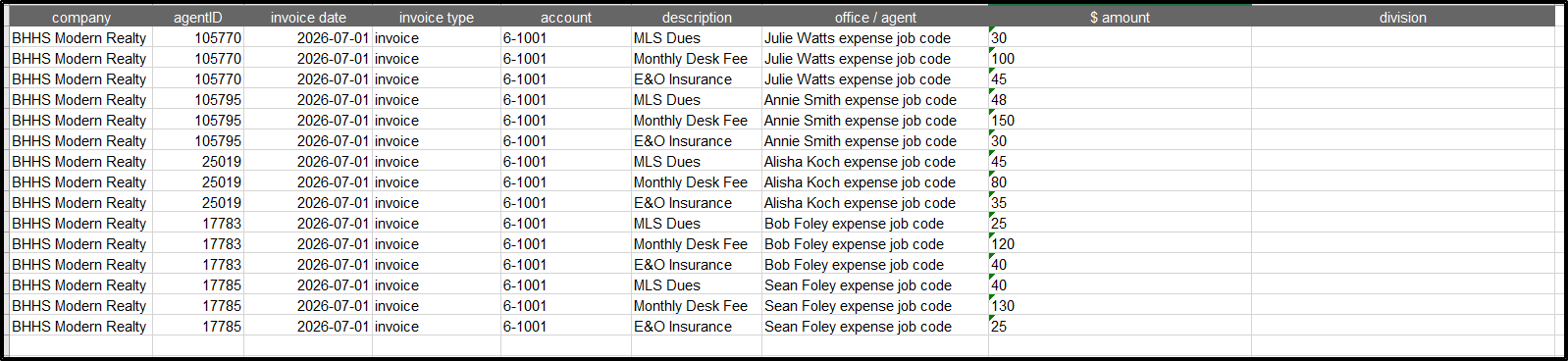
To ensure a seamless upload, the spreadsheet data must match the exact formatting expected by darwin.cloud. Users can use this quick reference guide to fill out the spreadsheet:
| Column | Field Name | Requirement & Where to Find It |
| A | Company |
|
| B | Agent ID |
|
| C | Invoice Date | Use the exact format: YYYY-MM-DD (e.g., 2026-07-14). |
| D | Invoice Type | Must be entered exactly as: Invoice |
| E | Account |
|
| F | Description | A brief explanation of the charge (e.g., "Monthly Desk Fee"). |
| G | Office/Agent |
|
| H | $ amount | Enter the numerical value (do not include dollar signs). |
Part 3: Importing the File
Once the template is ready, users can follow these steps to upload it:
- Return to Sales > Invoices and click Import.
- Click the Select Files button and choose the saved template from the local computer.
Handling Errors vs. Successful Uploads
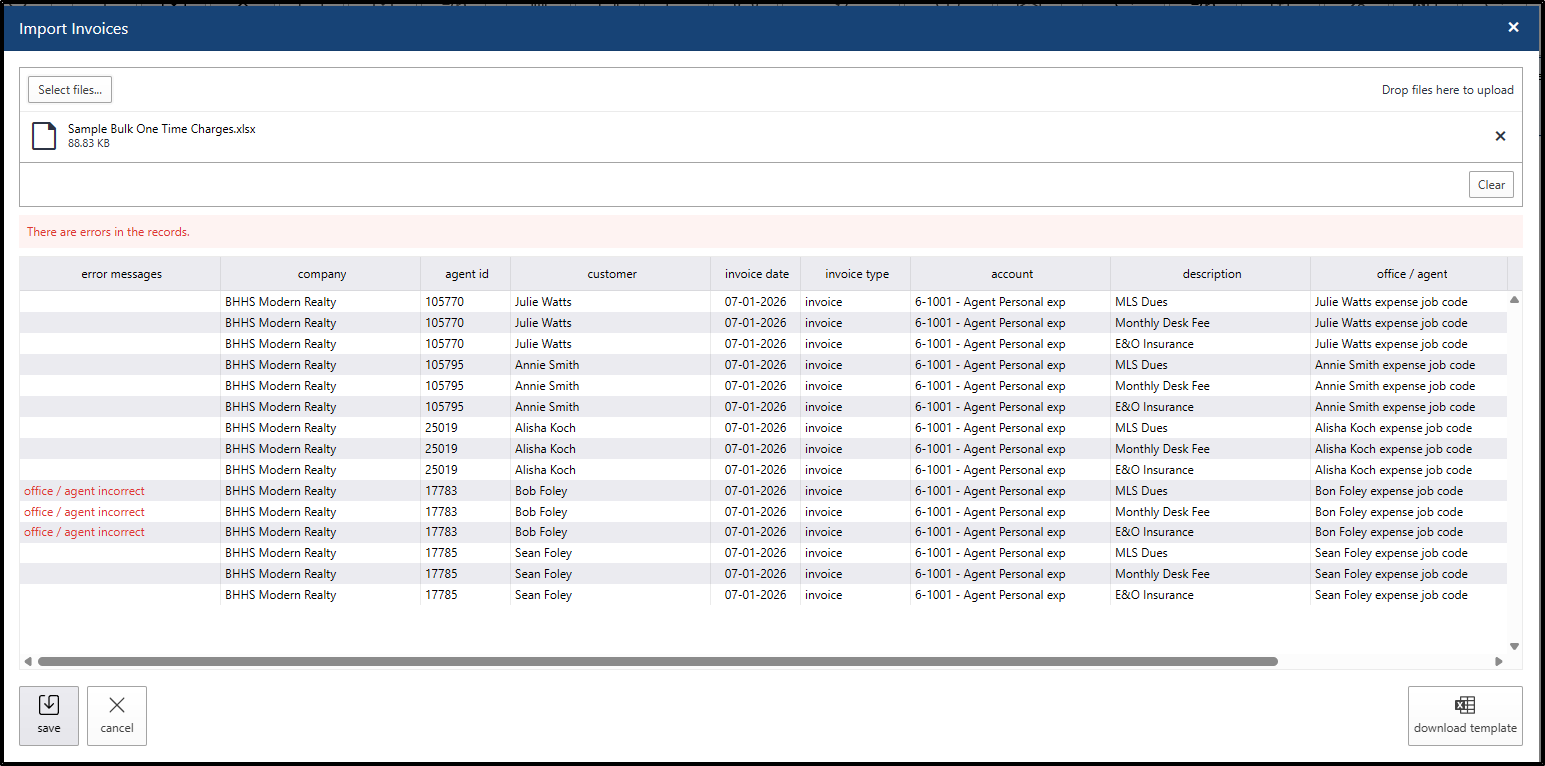
❌ If the upload fails:
- An error message will display stating: "There are errors in the records."
- An error column will appear on-screen to pinpoint exactly which row and field caused the issue.
- The Save button will be grayed out and unavailable.
- To resolve: Fix the errors in the local spreadsheet, save, and upload the file again.
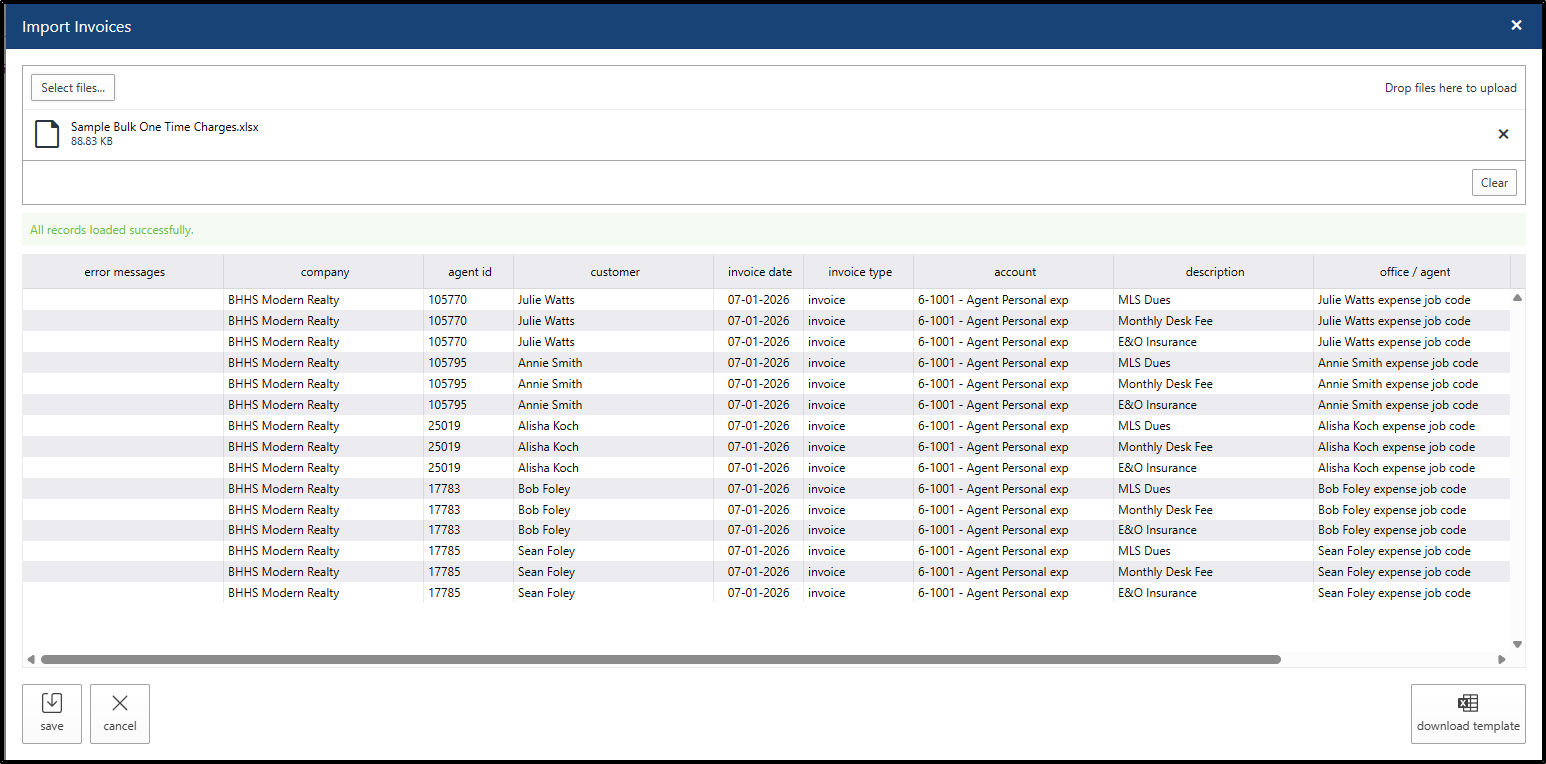
✅ If the upload succeeds:
- The message will display: "All records loaded successfully"
- The Save button will become active.
- Click Save to complete the process.
The Result
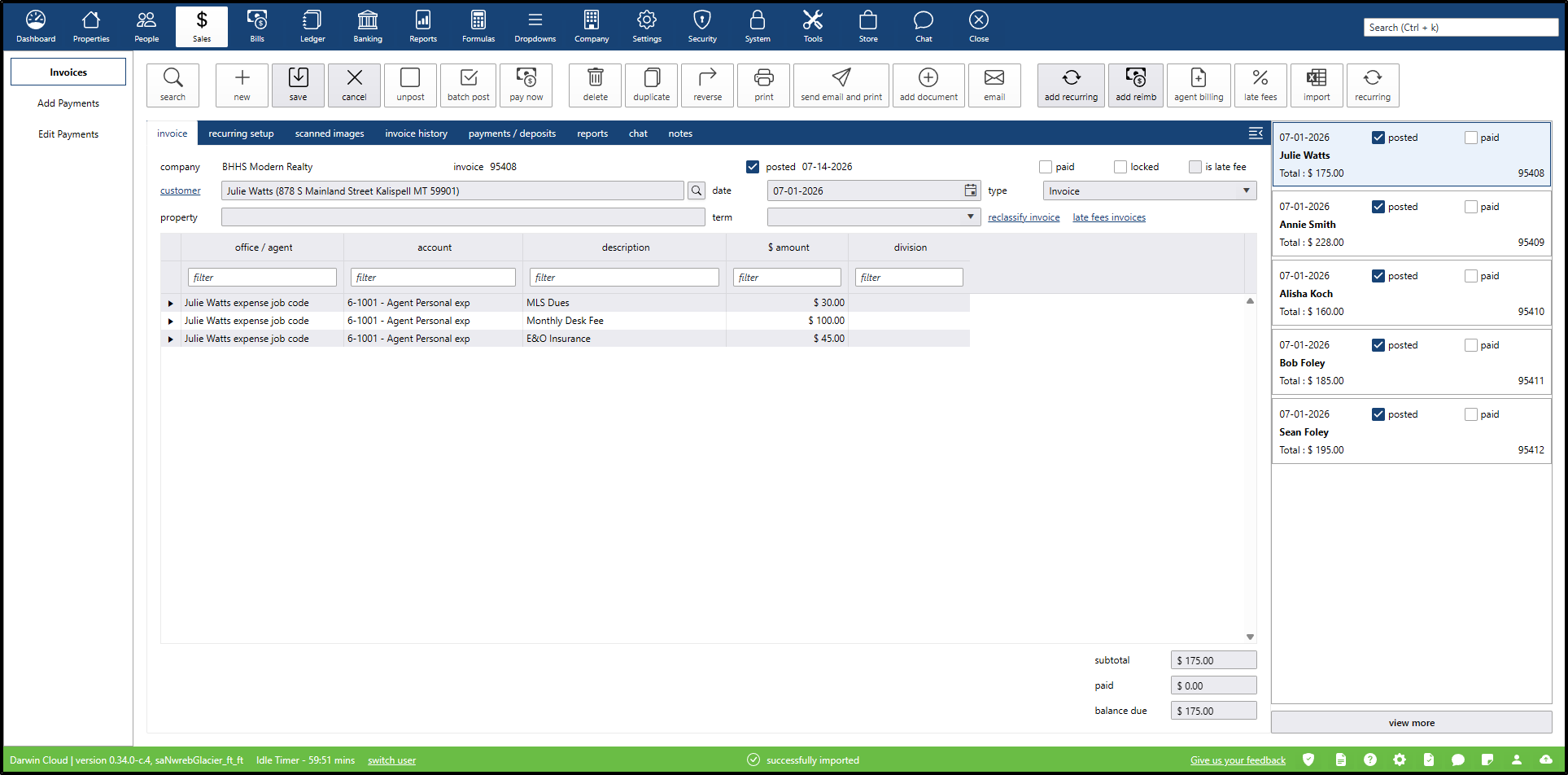
Once saved, darwin.cloud will confirm the successful import with a final message. The system will automatically generate, post, and apply the individual invoices to each respective agent's account.