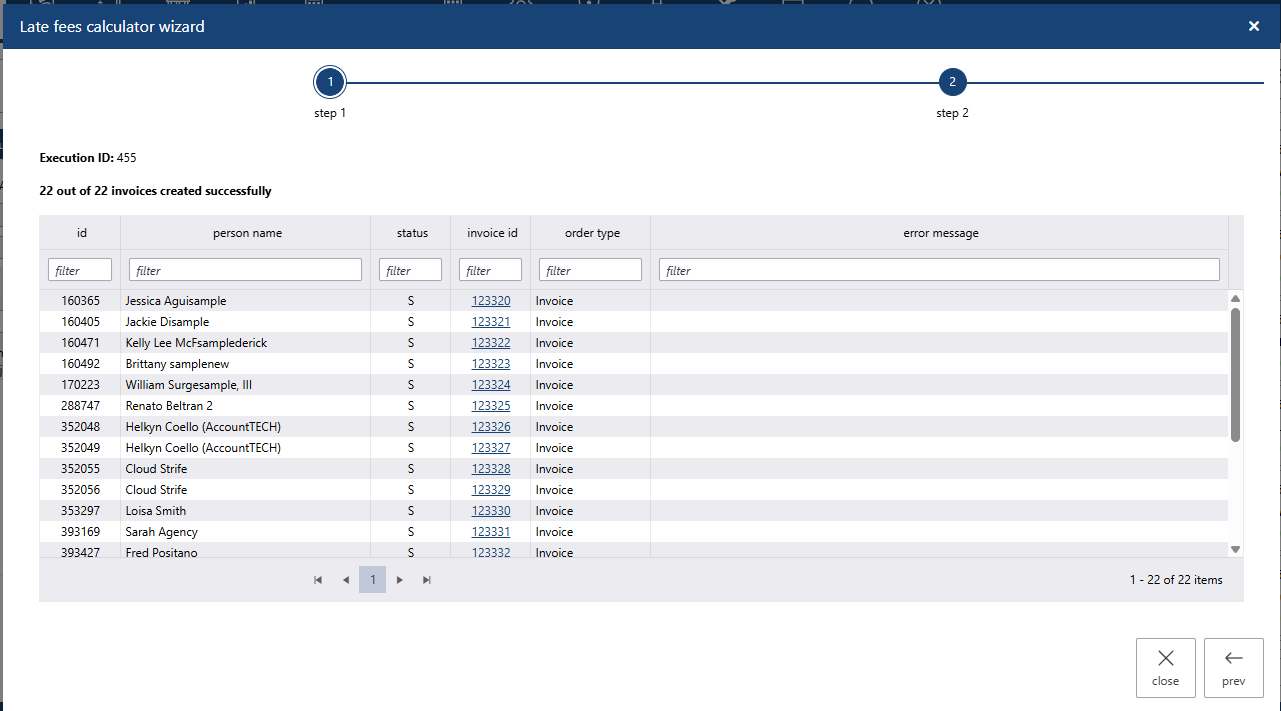
Charge interest on unpaid invoices using the Late Fees wizard.
Start the Late Fees Wizard
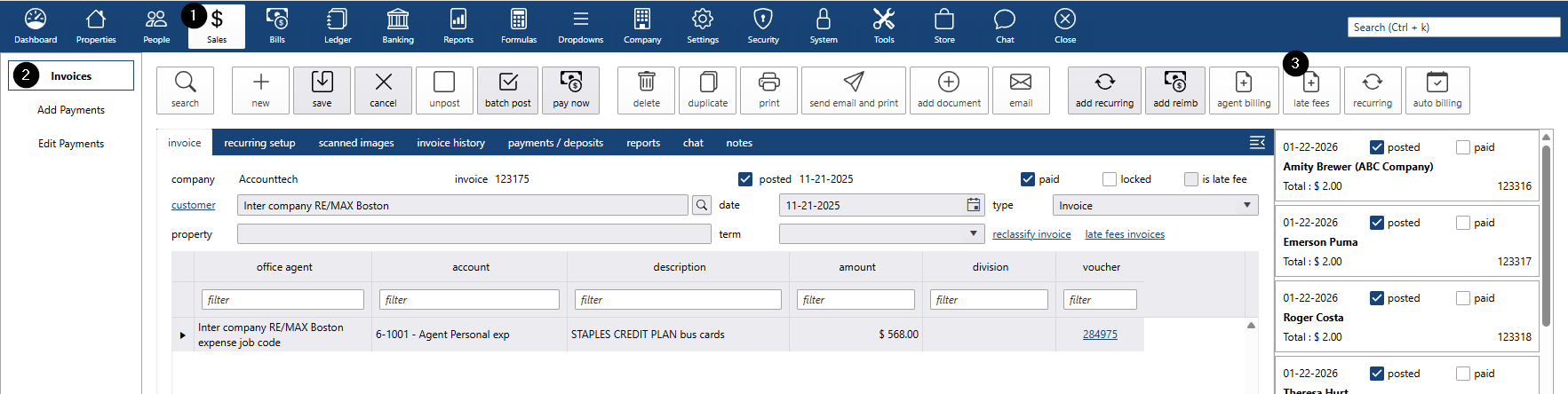
- Go to the Sales screen.
- Select the Invoices tab.
Click the Late Fees button.
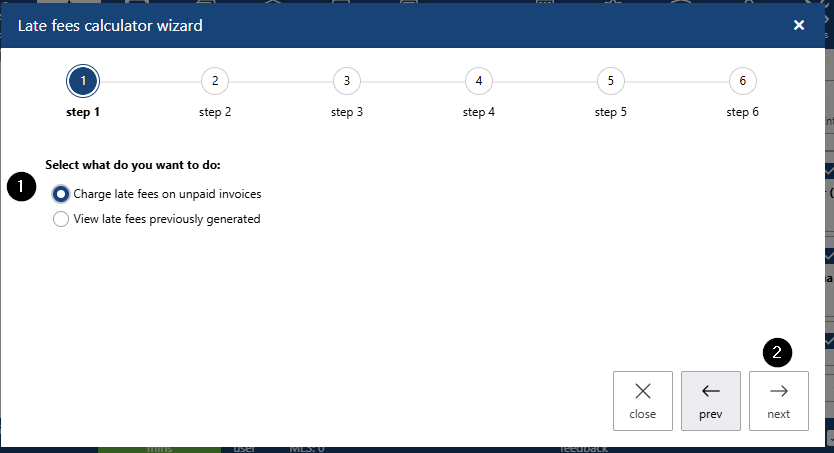
Create Late Fee Invoices
- Select Charge Late Fees on Unpaid Invoices
- Click Next
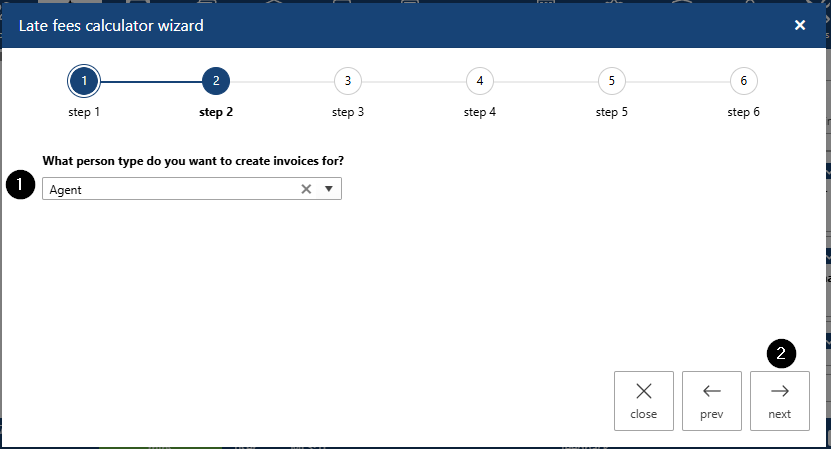
- Select the person type for invoices
- Click next
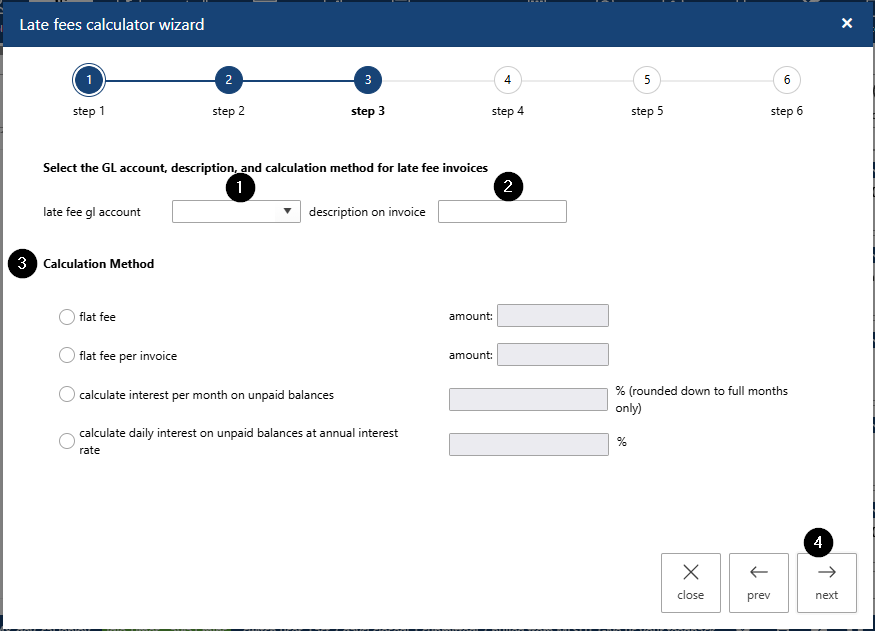
- Choose the GL account
- Enter a description
- Select a calculation method:
- Flat Fee
- Flat Fee Per Invoice
- Interest Per Month on Unpaid Balances
- Daily Interest on Unpaid Balances (Annual Rate)
- Click Next
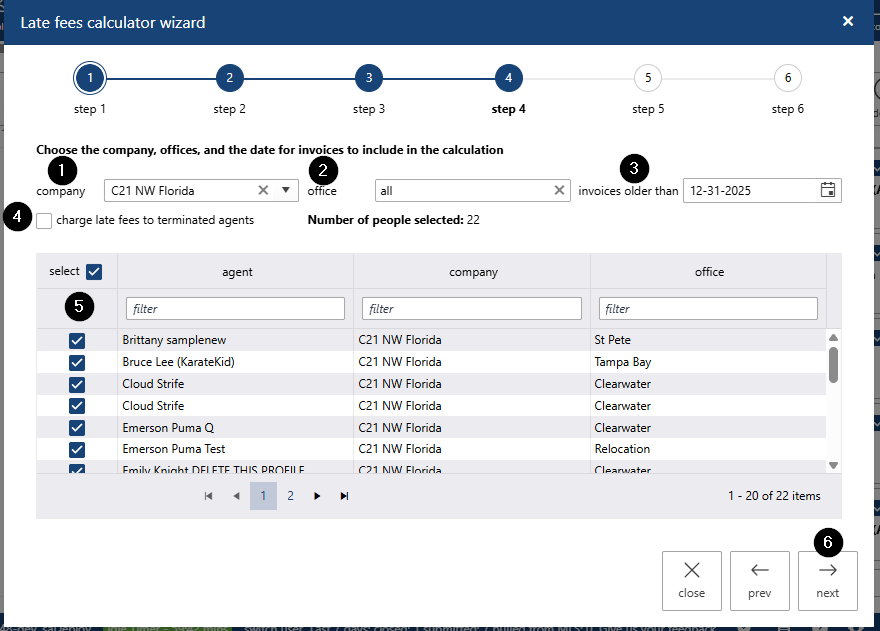
- Select company
- Select office
- Enter the Invoices Older Than date to filter for overdue invoices
- Use charge late fees to terminated agents checkbox to refine selection
- Select individuals to be charged, or click select all
- Click Next.
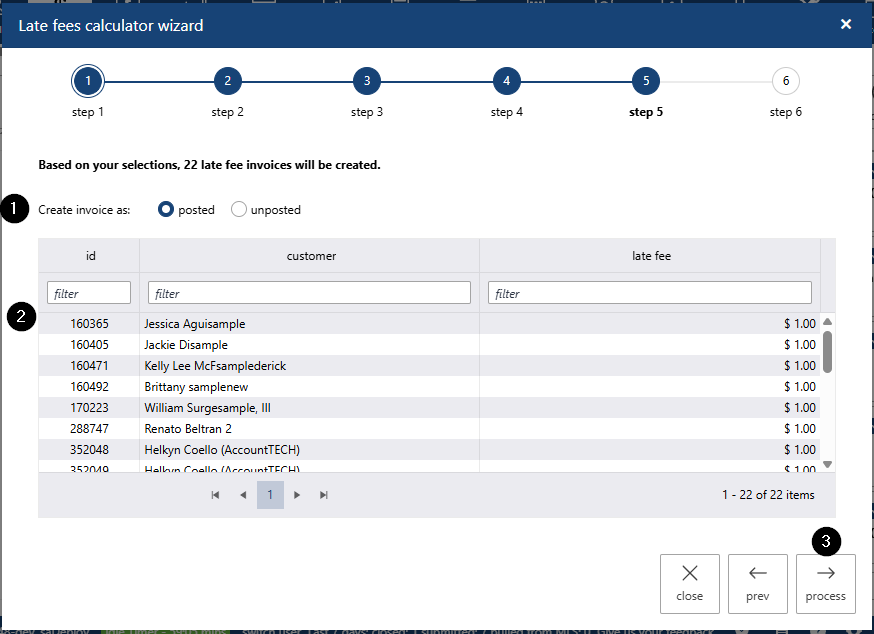
- Select posted or unposted status
- Review the invoice preview and total amount
Click Process to create invoices
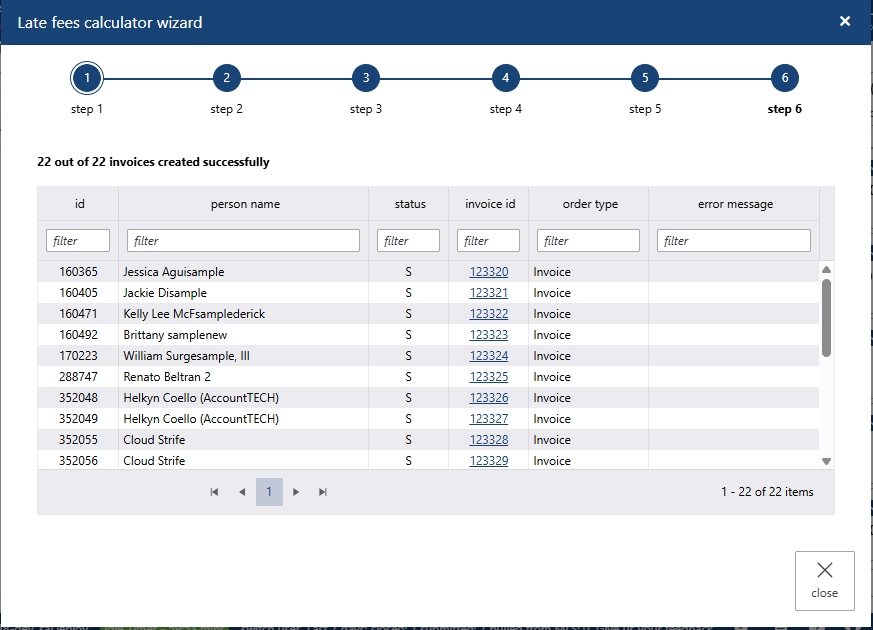
View the summary and invoice IDs (hyperlinks to invoices).
View Previously Generated Late Fees
- Navigate to Sales > Invoices and click the Late Fees wizard
- Select View Late Fees Previously Generated
- Click Next
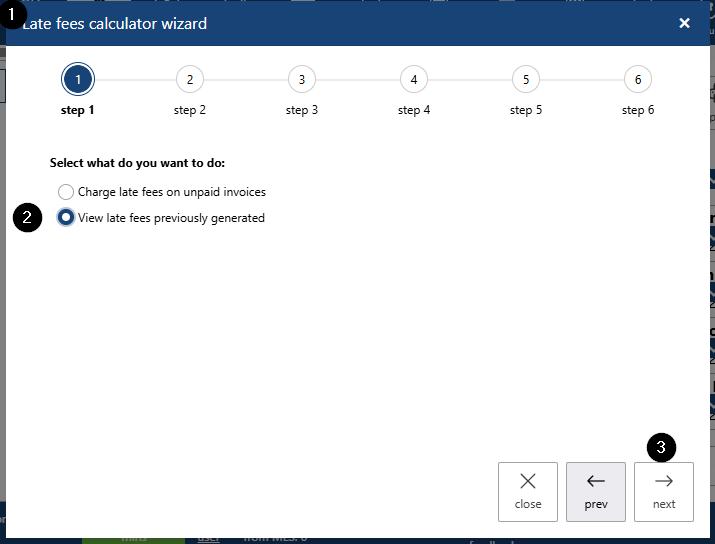
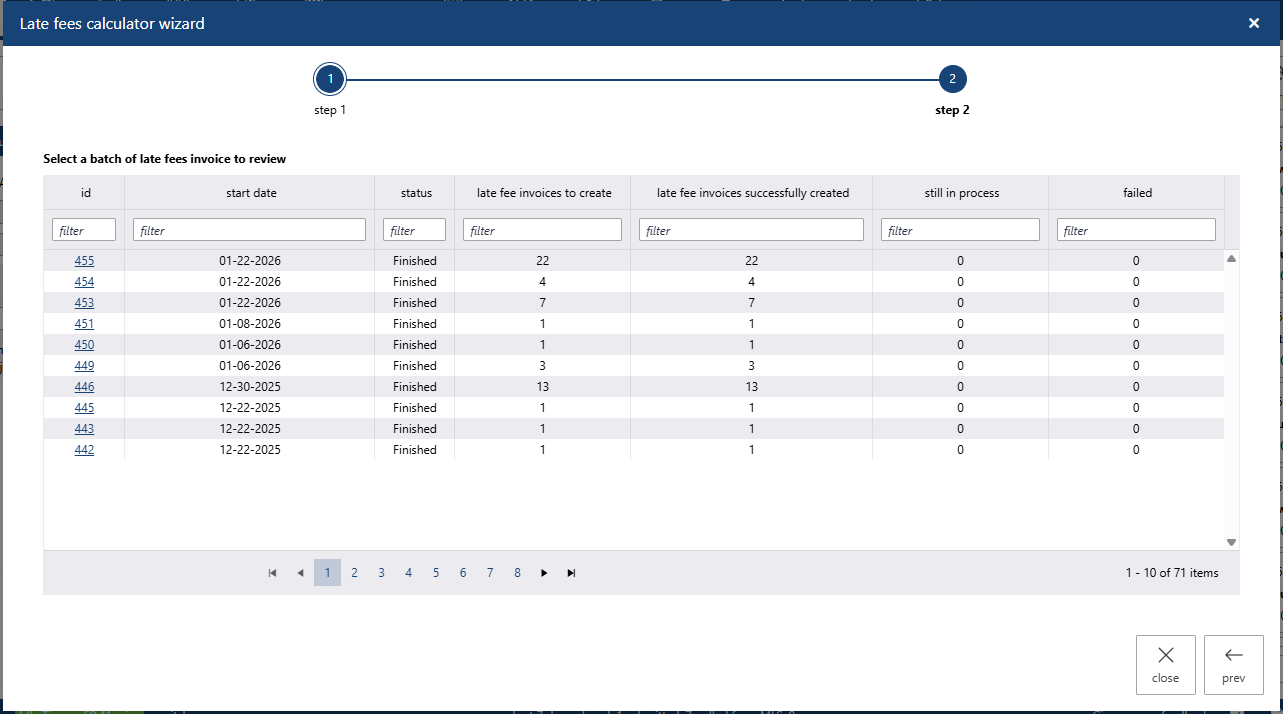
- Review batches of late fees:
- Batch ID (hyperlink to batch details)
- Date created
- Number of invoices in batch
- Status of invoices created
- Click batch ID hyperlink drill down
Review batch details including:
- payee names
- invoice status
- invoice id (hyperlink to invoice)
- error message (if applicable)