Feature Overview
You can now create deduction rules that automatically total overrides by category — for example, separating Retirement overrides from Team Lead overrides — so the right amounts are calculated and applied to each transaction without manual math.
Conditional Override Merge Field by Role Code Value
This update introduces a dynamic merge field, [Sum of Overrides by Agent with Code Value: X], allowing users to isolate specific override totals (e.g., Retirement vs. Team Lead) for use in Deduction Rules and Advanced Criteria.
User Flow
Step 1: Configuration
The process begins in the global setup of the override roles. An admin must define which roles are associated with specific codes to enable the filtering logic.
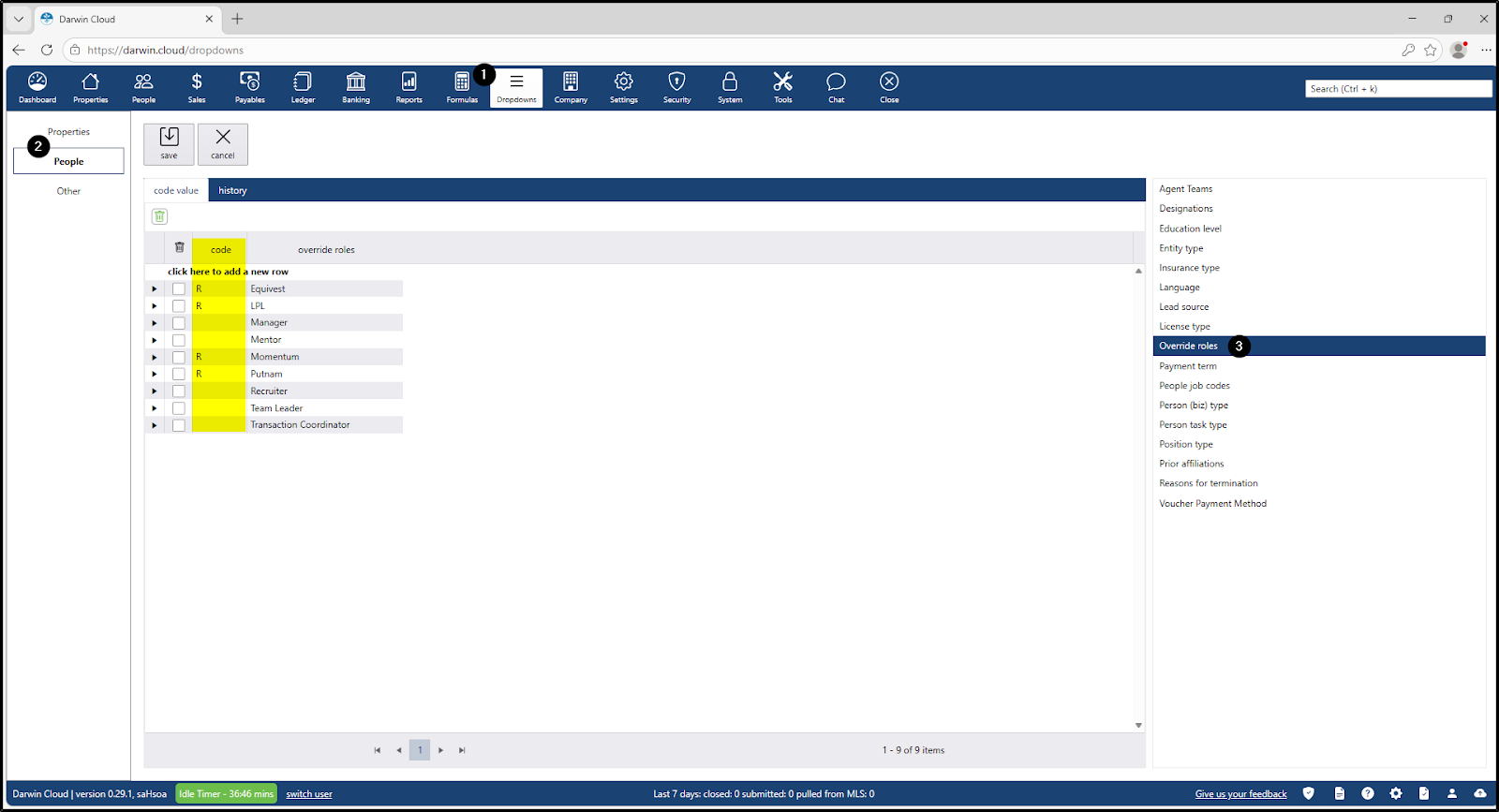
- Action: Navigate to Dropdowns > People > Override roles.
- Interaction: The user enters a new alphanumeric value in the "Code" column for specific roles (e.g., Role: Retirement Putnam, Code: R).
Step 2: Agent Assignment
Once the roles are coded, they must be applied to the individual agents who are eligible for those specific overrides.
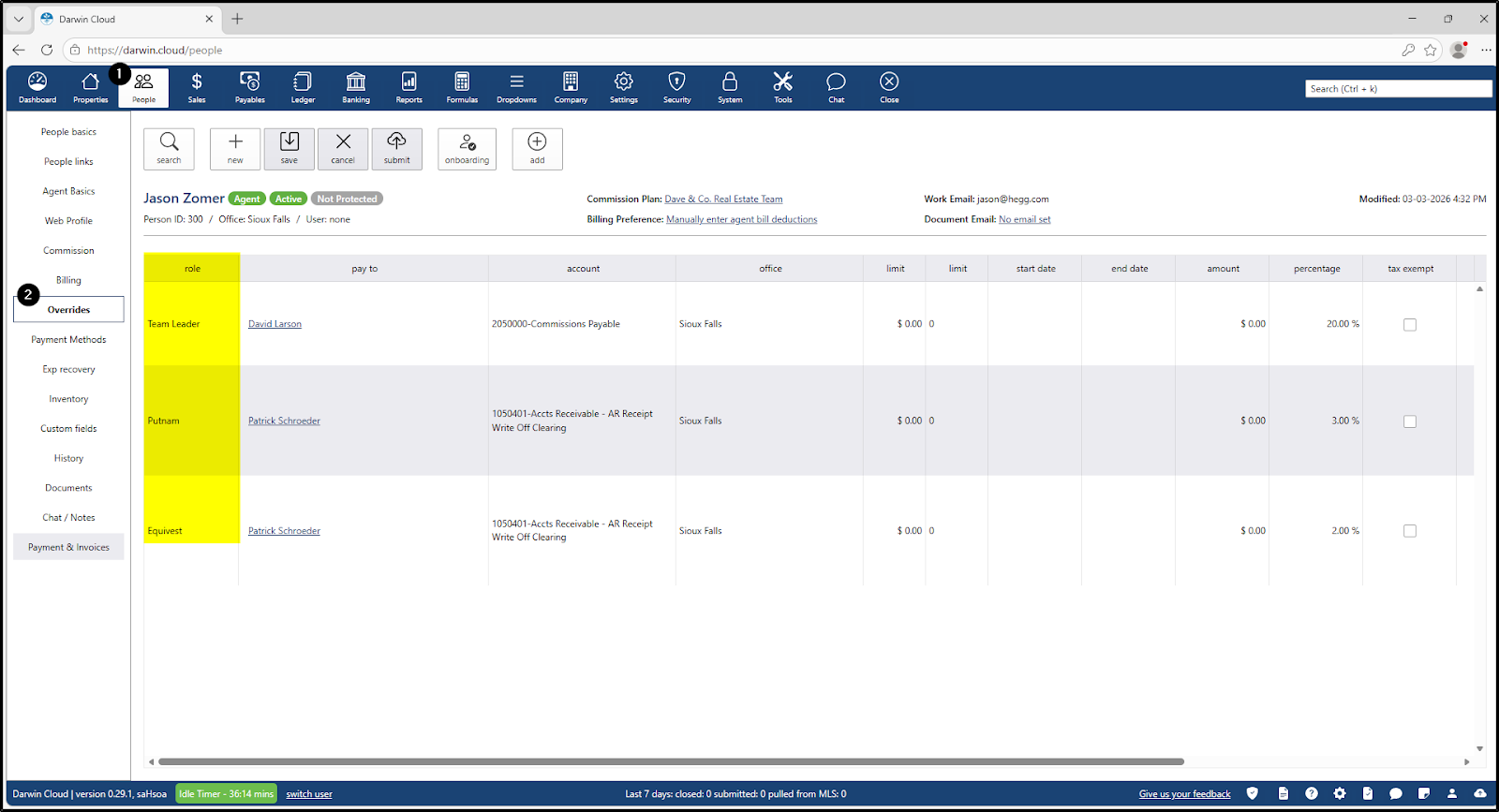
- Action: Navigate to People > Agent Profile > Overrides.
- Interaction: Add a new override to the agent. From the "Role" dropdown, select a role that was coded in Step 1.
Step 3: Formula Definition
The user now builds the logic that will automatically calculate the totals based on the code assigned in Step 1.
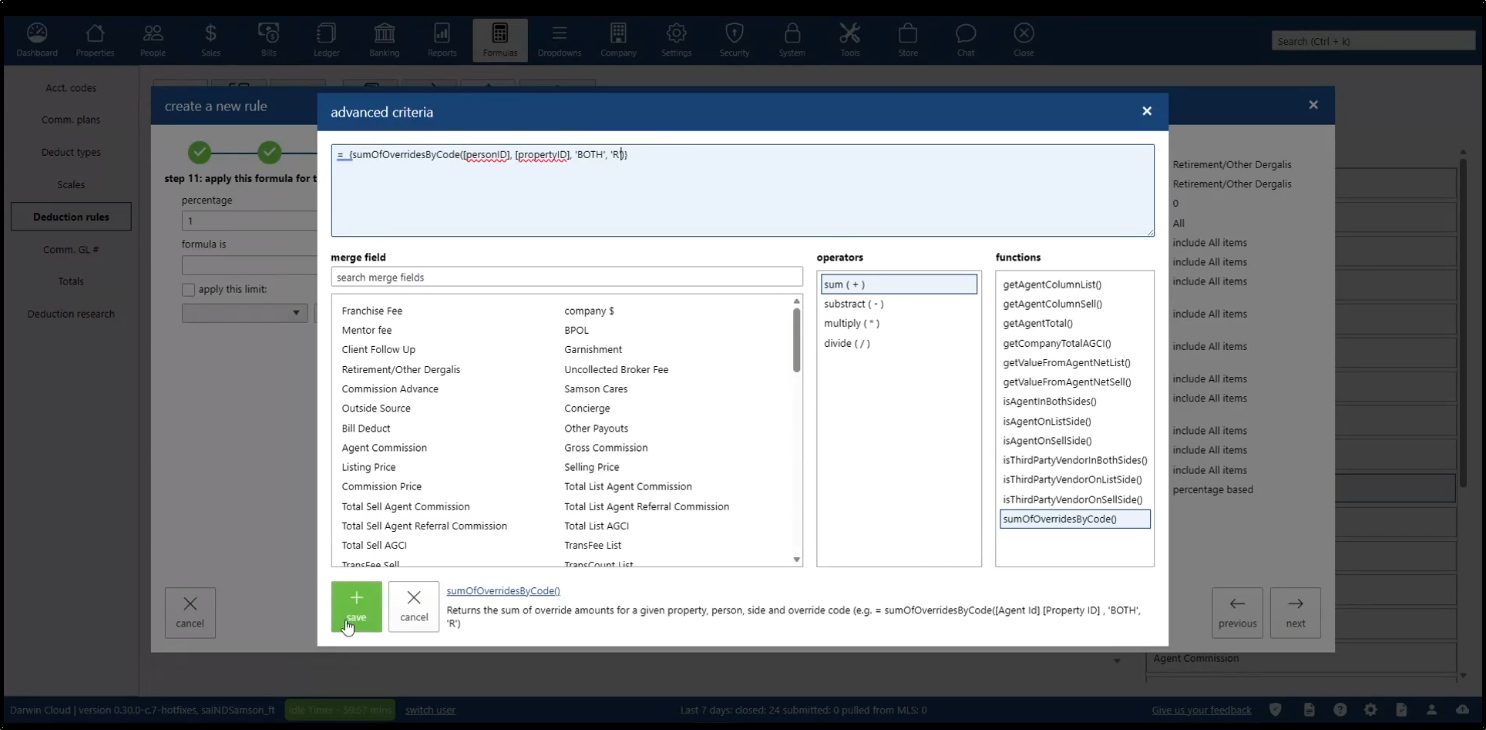
- Action: Navigate to Formulas > Deduction Rules.
- Interaction: In the "Formula Definition" text area, the user selects the new function: sumOfOverridesByCode(<personID>, <propertyID>, <side>, <overrideCode>)
- Formula Entry: =sumOfOverridesByCode([personID], [propertyID], 'BOTH', 'R'))
- Logic: The system is now instructed to look at the transaction, find the agent, and sum only the overrides assigned to that agent that carry the "R" code.
Step 4: Transaction Processing
This is where the automation provides value. When a deal is processed, the math happens behind the scenes.
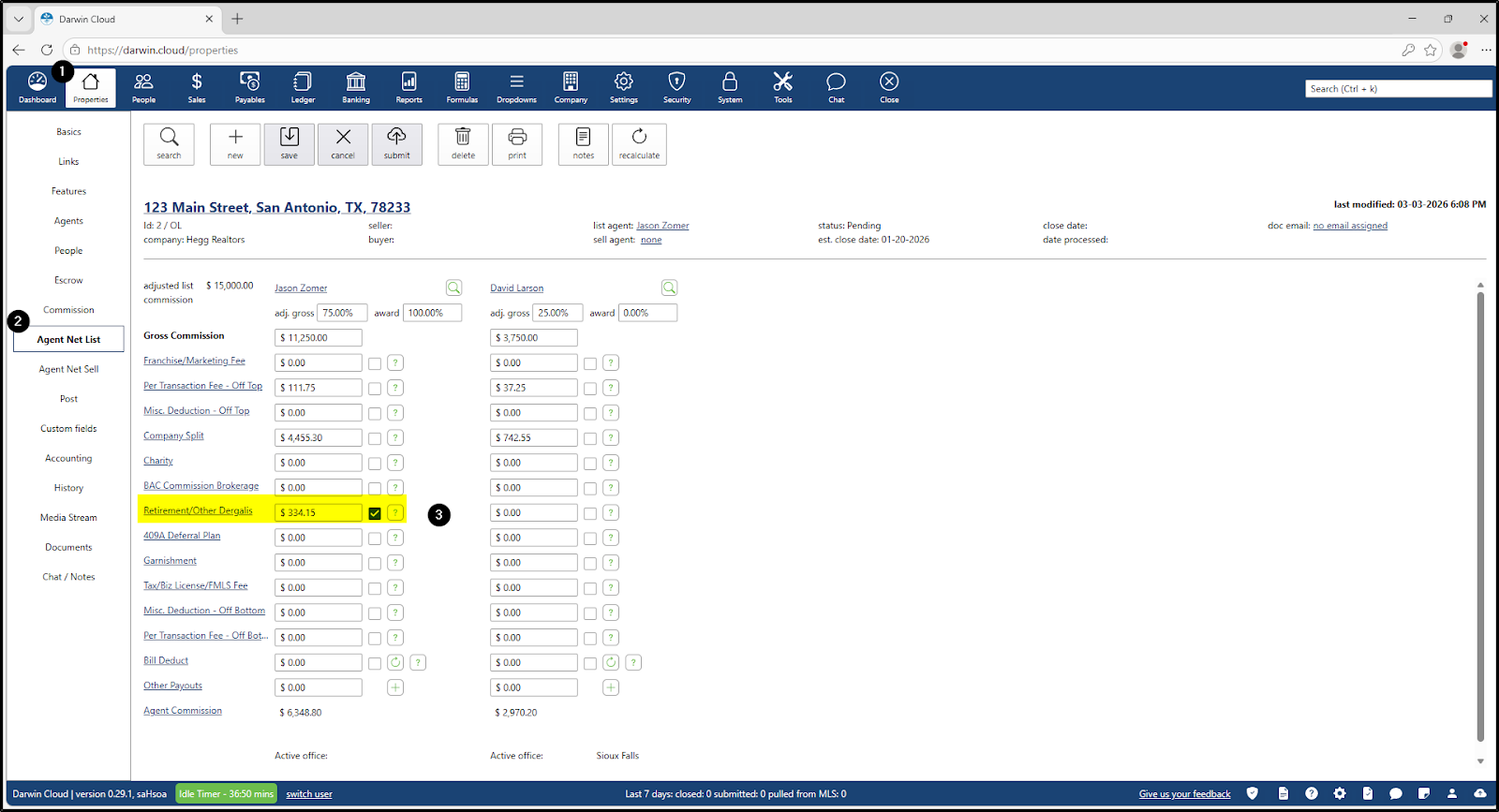
- Action: Navigate to Property > Agent Net List/Sell.
- Interaction: The user views the Retirement/Other Dergalis section.
System Result: The dollar amount automatically populates. If the agent has two "Code R" overrides (e.g., Putnam at $200.49 and Equivest at $133.66), the field displays $334.15.
Step 5: Verification & Posting
The final step ensures financial accuracy before the agent is paid.
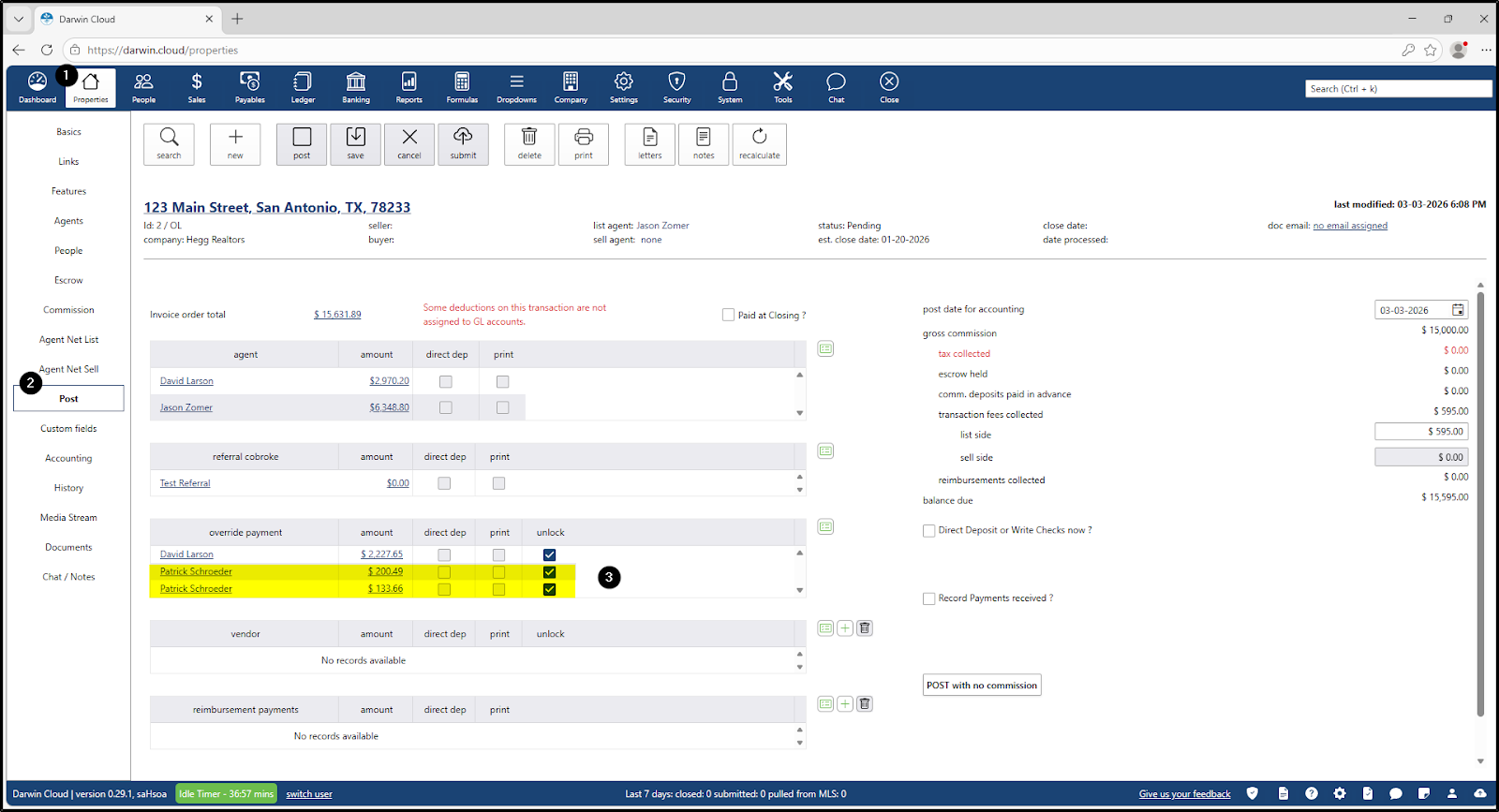
- Action: Navigate to Properties > Post.
- Interaction: The user compares the "Retirement" deduction line item against the "Override" payment line items.
- Validation: The total sum of all override payments marked with Code "R" must exactly match the deduction amount calculated in Step 4.