What’s New
The A/P Register now includes a new “inv / PO #” column. This brings the report in line with other A/P reports and removes the need to run multiple reports to view invoice or PO numbers.
Where It Pulls From
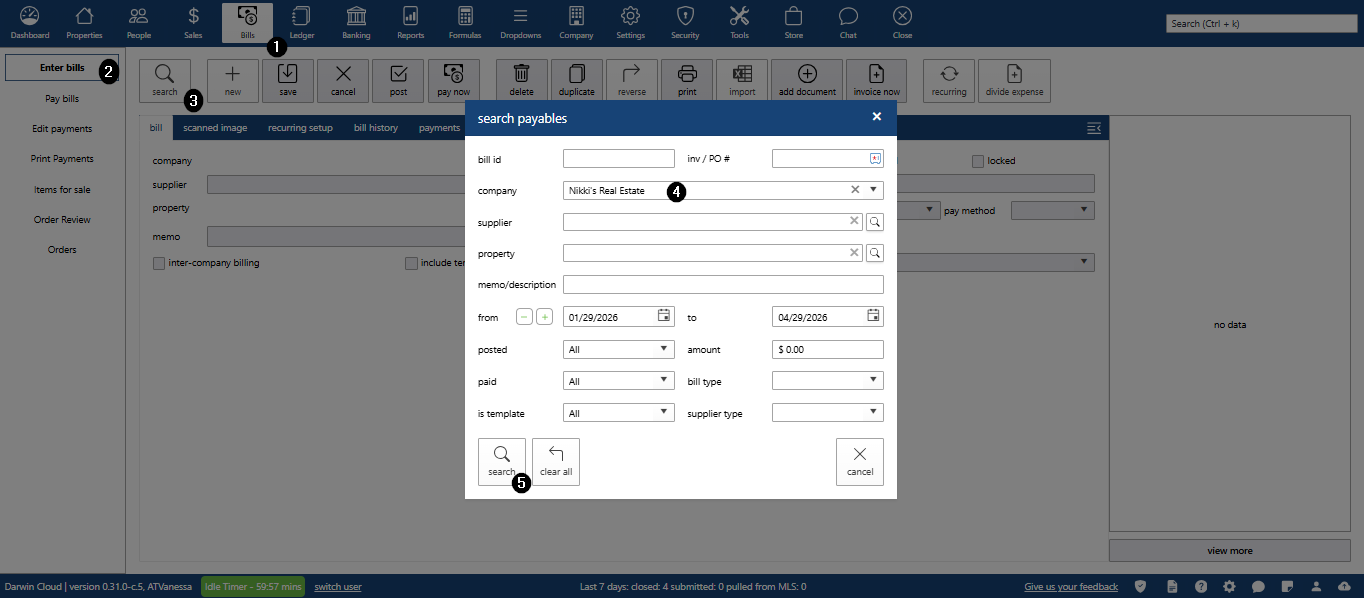
- Click Bills menu
- Click Enter Bills submenu
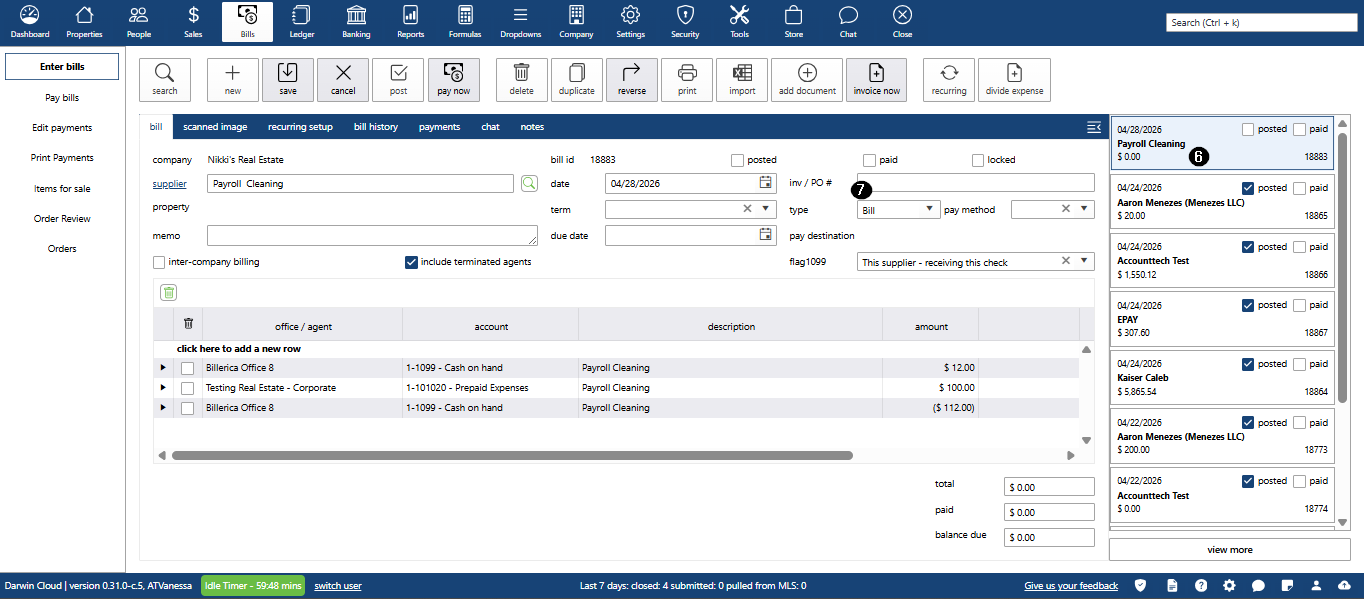
- Search and open a Bill or Voucher
- Look for the inv/PO # field
Why It Matters
- Fixes inconsistency across A/P reports
- Saves time by eliminating the need to run a second report
- Improves visibility into invoice and PO details
Notes
- Older vouchers without an inv/PO # will show blank
- Column is visible by default
- No setup required