In this article, we'll walk you through some of the most common issues clients encounter when working with Berkshire Hathaway HomeServices submissions in darwin Cloud, along with practical solutions and tips to help you have a smoother, more successful real estate experience.
STR Not Found for This Adjustment
If a transaction in an uploaded batch is declined with the error message "STR not found in this adjustment," this means that the sequence number associated with the transaction is out of sync with the records that the BHHS Resource currently has on file.
To correct the error:
- The transaction must be submitted with the correct sequence number.
- For example, if the transaction was originally submitted with sequence number 001, the sequence number should be corrected to 000.
BHHS transaction reports get declined upon upload to the BHHS portal
Batch Declined Reason: Listings information record: OFFICE-ID is not recognized by BHHS systems
To correct the error:
- The mailbox ID should be filled in (Company > company > mailbox ID field)
Batch Declined Reason: Contact ID is not recognized by BHHS systems
To correct the error:
- The agent # should be correct and matches from the BHHS (People > open Agent profile > People links > agent # field)
Missing an agent’s portion for closing from the submission file
To correct the error:
- Agent Office Assignment: Verify that the agent’s office is correctly assigned in the system.
- BHHS Franchise Reporting: Confirm that the office is part of BHHS franchise reporting, meaning it is included in the client’s submission setup.
Submission Error Messages and Fixes
In the Push Submission Window, an Error Tab will appear when Darwin detects submission errors. These must be fixed before finalizing the franchise report.
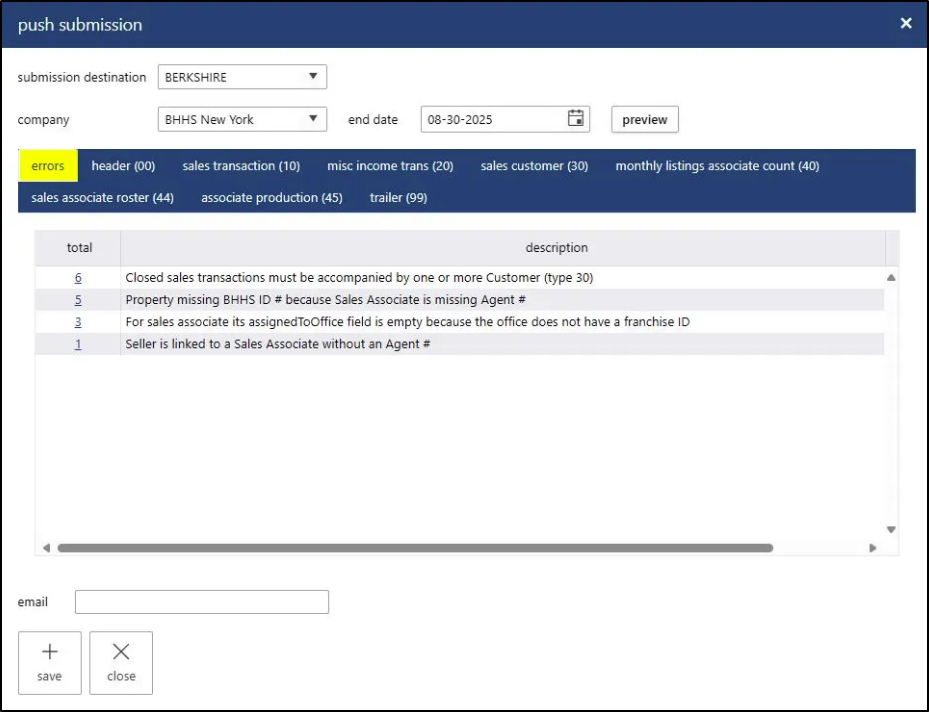
Closed sales transactions must be accompanied by one or more Customer (type 30)
How to resolve:
- List-side transactions must include at least one seller
- Sell-side transactions must include at least one buyer
- In-House transactions must include both a buyer and a seller
Closed sales transactions must have a valid sold date
How to resolve:
- Enter a Pending Date for all transactions with a Closed status
Sales transactions must have a valid sales price
How to resolve:
- Selling Price must be filled in for Pending and Closed transactions
For misc income transactions, the commission date must be a valid date on or prior to the current date
How to resolve:
- The Misc Income transaction is missing the processed date
Miscellaneous income transactions must be accompanied by one or more Agent (type 45)
How to resolve:
- The Misc Income transaction must include at least one agent.
Property missing BHHS ID # because Sales Associate is missing Agent #
How to resolve:
- One or more agents on the transaction are missing an Agent Number (Associate ID) in their profile. Enter a valid Associate ID for each agent before submitting the transaction to Berkshire Hathaway HomeServices.
Seller is linked to a Sales Associate without an Agent #
How to resolve:
- One or more agents on the transaction are missing an Agent Number (Associate ID) in their profile. Enter a valid Associate ID for each agent before submitting the transaction to Berkshire Hathaway HomeServices.
For sales transactions, GCI must not be greater than the sales price
How to resolve:
- The Agent Commission cannot be greater than the transaction's Selling Price. Verify the commission setup and update the transaction as needed.
PREAID is invalid
How to resolve:
- Confirm that the Agent # on the agent's profile either matches the PREA ID in the BHHS resource, or is blank (for new agents)
StatusUpdateDate is invalid
How to resolve:
- For new and active agents, make sure the Start Date is filled in on the agent profile. For terminated agents, make sure the Terminate Date is filled in.
Sales transactions ADJUSTMENT-SEQUENCE invalid
This specific error occurs during data transmission from your back-office accounting software (such as Lone Wolf/backOffice, darwin, Lucero, or a proprietary API) to the Berkshire Hathaway HomeServices (BHHS) Resource Center.
This error means the Resource Center is receiving an entry that attempts to modify, update, or cancel an existing closed transaction, but the sequential "history tracking number" (the adjustment sequence) assigned to that change does not match what the franchise database expects.
Why is this happening?
- Out-of-Sync Sequencing: Every time you alter a transaction after it has been uploaded, your system numbers the change (e.g., Sequence 0, Sequence 1, Sequence 2). If a previous modification failed to upload or was bypassed, your back-office system might be trying to send "Sequence 2" while the BHHS Resource Center is still waiting for "Sequence 1".
- Double Reporting / Zeroing Out: Someone may have manually altered, un-finalized, or re-posted a transaction in your accounting system, generating an invalid adjustment logic chain.
- Ghost Transactions: The transaction might have been deleted or altered drastically on the Resource Center side manually, meaning the API can no longer find the base record to apply the adjustment sequence to.
Step-by-Step Solutions
Here is how to troubleshoot and resolve the issue, starting with the most common back-office fixes:
Step 1: Force a Full Re-Sync (Over-write)
Instead of letting your system send just the change (the adjustment sequence), you need to force the back-office software to send the transaction as a clean, current-state record.
- In Lone Wolf (WolfConnect/backOffice): Go to your franchise reporting menu (usually 2.V.1 or the Franchise Transmittal screen). Locate the rejected transaction. Look for an option to "Change Status", "Flag for Re-transmission", or change the transmission type from Adjustment to Add/Update.
- In other software: Locate the data transmission log, select the specific transaction ID, and clear the "Sent" flag so that it behaves as a fresh upload rather than a sequential patch.
Step 2: Verify the Transaction History in the Resource Center
Log directly into the BHHS Resource Center (via Cabernet Corner) to see what the franchise already has on file.
- Search for the specific Listing/Sale ID or Property Address.
- Look at the transaction status inside the Resource Center.
- Is it showing as Closed, Open, or is it missing entirely?
- Check if there is an existing adjustment already listed there. If the Resource Center shows a higher sequence number than your local software, you may need to manually update the record in the Resource Center to match your local books, or vice versa.
Step 3: Delete and Re-Key (If the transaction is completely stuck)
If the system refuses to accept the adjustment and it blocks the rest of your transmission batch:
- Note all the financial details, commission splits, and agent data for the transaction locally.
- If allowed by your system, change the deal status to Cancelled or Deleted, and attempt to transmit that delete command.
- Alternatively, duplicate the deal to create a brand-new transaction ID, input the correct final numbers, and transmit it as a fresh sequence 0 record. (Make sure the old, broken transaction ID is cleared or manually deleted from the Resource Center to avoid double-reporting).
How to Prevent This Moving Forward
- Avoid Manually Editing on Both Sides: Never manually edit a transaction directly inside the BHHS Resource Center and your local accounting system. Always make the change locally in your software and let it sync upstream naturally.
- Keep Batches Sequential: Make sure you finalize and transmit your batches regularly. Jumping back and editing months-old closed deals out of order is the primary trigger for sequence errors.