Overview
Forte is a third-party payment processing platform integrated with darwin Cloud to handle both credit card and ACH (eCheck) transactions.
Key Resources
- Forte Website: https://www.forte.net/
- Forte Console (Merchant Login): https://console.forte.net/
- Forte Support Portal: https://support.forte.net/support/login
Customer Support
- Email: [email protected]
- Phone: 866.290.5400 (Option 1)
AccountTECH Partner Contact
- Relationship Manager: Lorraine Cuevas
- Phone: +1 469-393-6534
- Mobile: +1 469-497-6152
- Email: [email protected]
Merchant directory
Integration & Setup
Integration Process
- AccountTECH’s role – Provide the client with the PDF application form.
- Client’s role – Complete the application form and submit it with all required documents directly to Forte.
- Forte’s role – Review the application and send an approval email to both AccountTECH and the client.
Forte Setup Steps
- Enable Forte Payment Feature
- Navigate to Settings > Set Up > Application Settings > Forte
- Enable “Forte for payments by account” and set the value to TRUE
This setting is being used if the client applied for Forte services for more than one bank account.
- Add Merchant ID (MID)
- Go to Ledger > Chart
- Select the company from the dropdown
- Enter the MID in the Forte column
- Assigned a person type
Security > Roles > Action
Two new actions were added for all databases - if users add the new actions to the Agent role it should resolve the issue:
- Tools > ACH/CC Payments > Allow Delete
- Tools > ACH/CC Payments > Allow Edit
Forte Process
Adding Payment Information
- Go to People > search for the agent profile
- Open People Links > Electronic Payments Settings
- From the Setup Paymethod widget, add the credit card and/or ACH details, then click Save
Direct Deposit / ACH Process
Processing Payments via Direct Deposit
- While closing a transaction
- After closing a transaction
- In the Bills > Pay Bill screen
Article: How do I Direct Deposit Agent Commissions
Credit Card Process (Agent Billing)
Processing Payments via Credit Card
- Full $ amount
- Partial $ amount
In the Sales > Add Payments screen
- Click search button to search for the company
- Click the pay by credit card tab
- In select column, check the items for credit card process
- Click post button
ACH Withdrawal
Usage:
- To refund a duplicated direct deposit payment
- To pay bills for agents (Agent Billing)
In the Sales > Add Payments screen
- Click search button to search for the company
- Click the pay by ACH Withdrawal tab
- In select column, check the items to process
- Click post button
Funding/Processing schedule
Forte follows Pacific Standard Time (PST)
CANADIAN CLIENTS
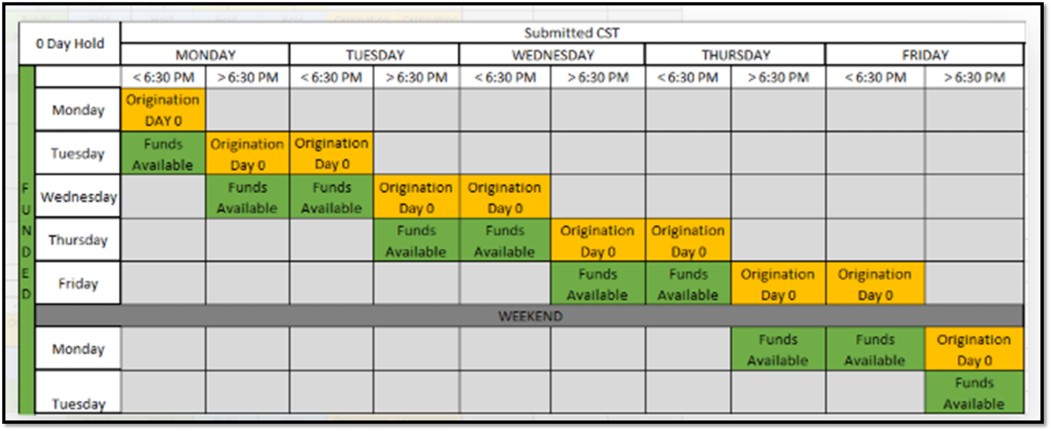
Zero-day process
- CAD Merchant follows 0-day hold funding.
The hold day chart times are in CST, while transactions in DEX are listed in PST.
US CLIENTS
For direct deposit processed payments
- Next Day availability
- To be processed as "today's business", Direct Deposit authorizations need to be completed by 7PM Eastern time.
- This means that Agent commission Direct Deposits authorized by 7PM Eastern time will appear in the Agent's bank account the next morning.
- In summary, payments made before 7pm Eastern time appear:
- Monday > agent receives Tuesday
- Tuesday > agent receives Wednesday
- Wednesday > agent receives Thursday
- Thursday > agent receives Friday
- Friday > agent receives Monday
- Saturday or Sunday > agent receives Tuesday
For credit card processed payments
- Credit card invoice processed 2-3 days
For ACH Withdrawal
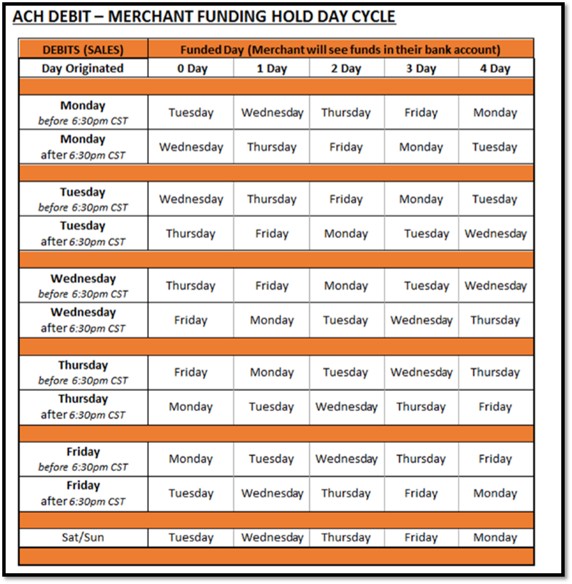
- ACH Withdrawal/Debit follows a funding hold day cycle in CST.
A transaction may remain in “Settling” status for up to 4 business days (maximum).
Forte Reversals
- An ACH refund can take up to 4 business days to process.
- Credit Card refunds take 5-7 business days
Reversed Forte transaction:
- AccountTECH merchants are setup on a 3-day hold which is 3 business days. Forte usually send the reversal in the evening on the third business day.
Common Issues & Fixes
Transaction Response Codes
When a transaction is submitted for processing, Forte immediately returns one of the following responses.
- Transactions that are rejected for processing return the U response codes.
- Transactions that are accepted for processing return the A response codes
- Transactions that are pending for processing return the P response codes. (Note: P codes are currently applicable only for PayPal transactions).
- Transactions that have formatting errors in the message return the F response codes
- Transactions that run into exceptions return the E response codes.
Common Response, Return, Reject Codes
Response Codes (Immediate transaction responses)
Success, declines, AVS failures, duplicates, etc.
- A01 — Approved. The only code returned for fully approved transactions.
- A03 — Partial Authorization (for credit cards only), used when only part of the requested amount is approved.
- U-codes — Indicate various types of declined transactions. Common ones include:
- U02 — Account Not Approved: Typically, this means the account is on Forte’s “known bad” list (EFT only).
- U03 / U04 — Daily/Monthly Transaction Limit Exceeded (EFT only).
- U05, U06, U07 — AVS (Address Verification) Failures by ZIP code, area code, or email.
- U10 — Duplicate Transaction. Forte blocks near-identical transactions within a short timeframe.
- U12 to U15, U18, U19, U20, U21, U22, U23 — Errors related to void/capture operations and invalid data format (like invalid routing number, card number, dates, swipe data).
- U52 — Type Not Allowed: Merchant is not configured for that transaction type (e.g. credit vs. eCheck).
- U53 — Per-Transaction Limit Exceeded (EFTs only).
- U54 — Invalid Merchant Configuration. Requires admin action to correct.
- U80, U81, U82 — Preauthorization (Forte Verify) Issues: decline, timeout, or error during the pre-check process for eCheck accounts.
- U83 to U90 — Authorization-related failures, such as:
- U83 — Auth Decline (e.g., NSF, invalid account, or other authorizer rejection)
- U84 — Auth Timeout
- U85 — Auth Error
- U86 — AVS Failure (Auth)
- U87 — Auth Busy
- U88 — Preauth Busy
- U89 — Auth Unavailable
- U90 — Preauth Unavailable
ACH Return Codes (Post-submission returns via NACHA)
Bank-level ACH returns like NSF, closed account, etc.
When ACH transactions are returned by the banking network (usually within 2–4 business days), they use standard NACHA return codes. Some of the most common ones are:
- R01 — Insufficient funds
- R02 — Account closed
- R03 — No account / account doesn’t match the name
- R04 — Invalid account number
- R05–R10 — Cover everything from unauthorized debit to payment stopped, uncollected funds, etc.
- R11–R16, R20–R21, R30–R44, R50–R71, R95–R99 — Cover a wide array of issues such as returned checks, deceased account holders, frozen accounts, routing errors, duplicate submissions, invalid entries, over-limit, holds, and more.
Special scenario: Declined direct deposit U02 - Account not approved
- Common reasons include:
- Incorrect or incomplete banking details – e.g., routing or account number errors.
- Bank account ownership mismatch – the business/legal name on the Forte application must match the name on the bank account.
- Unverified or restricted account type – some savings or personal accounts can’t be used for business direct deposits.
- Missing verification documents – such as voided checks, bank letters, or EIN verification.
- Pending compliance review – Forte sometimes flags accounts for additional risk or identity check
If you check the Forte Dashboard → Accounts → U02 (Banking) section, there’s usually a status note or error reason displayed.
Lorraine’s update:
- The account was on the KBL due to the return transaction. I can clear the account from the KBL and the merchant can resubmit the transaction again.
Forte Payment Results error messages
- There is no account configured with the customer's merchant ID. Please go to the Ledger/Chart screen to continue.
- This API Access ID does not have permission to access the requested paymethod_token
DEX shows “Successfully Funded” | Agent has not received the funds yet
When Forte shows a transaction as “Successfully Funded,” it means:
- Forte has completed its part of the process — the funds have been sent out from Forte to the recipient’s (agent’s) bank.
However, if the agent hasn’t received the funds yet, here’s what could be happening:
- Bank processing delay
- Even though Forte marked it “funded,” the receiving bank may still be processing the deposit.
- ACH (Automated Clearing House) transfers usually take 1–2 business days to fully settle, depending on the bank’s cut-off times and weekends/holidays.
- Example: If Forte funded the payment late in the day Friday, the agent may not see it until Monday or Tuesday.
- Deposit posted to a different account
- Check that the bank account number on file for the agent in Forte (or in your system, like Darwin or your accounting platform) is accurate and current.
- If the agent recently changed banks and the update wasn’t applied before the payment, the funds could have gone to the old account.
- Bank returned or holding the funds
- Sometimes, even after “successful funding,” the receiving bank can later reject or return the deposit (for example, if the account is closed or the routing number is invalid).
- When that happens, Forte usually updates the transaction status later to something like “Returned” or “Failed.”
- It can take 1–3 business days for that return notification to show up.
- Check Forte funding date vs. posting date
- The “funded date” in Forte is the day they released the funds, not necessarily the same day the agent’s bank posts it.
- The agent should check their transaction history for the next 24–48 hours, not just same-day deposits.
Duplicate direct deposit payments
Duplicate direct deposit payments may occur when a closed transaction with a processed direct deposit is unposted during or after closing.
How to Fix a Duplicate Direct Deposit
- Scenario 1: Duplicate payment processed within 24 hours
- Log in to DEX.
- Locate the duplicate transaction.
- Void the transaction.
- This action cancels the duplicate before funds are finalized.
- Scenario 2: Duplicate payment already processed and agent received the funds
- Confirm with the agent that the duplicate funds were deposited.
- In darwin Cloud, process an ACH Withdrawal to recover the duplicate payment.
- Document the withdrawal for tracking and reconciliation.
How to Prevent Duplicate Direct Deposit Payments
- Verify all information (commission details, payment setup, etc.) before closing a transaction.
- Avoid unposting closed properties after direct deposit has been processed.
- If a correction is needed, ensure adjustments are made prior to closing.
- Communicate with your team about the risk of duplicates when unposting transactions
PCI Compliance
Every merchant who processes, stores, or transmits cardholder data is subject to PCI and must demonstrate compliance. This is a world-wide initiative.
PCI compliance is compliance with The Payment Card Industry Data Security Standard (PCI DSS), a set of requirements intended to ensure that all companies that process, store, or transmit credit card information maintain a secure environment.
PCI is all about protecting cardholder data. Prior to 2006, all of the major card brands (Visa, Mastercard, Discover, American Express and JCB) each had their own security requirements. In 2006, they decided there needed to be consistency in security requirements across the playing field. As a result, they created a group called the PCI Security Standards Council. The Council was tasked with creating a single, system-wide standard that would apply to all merchants, members, and service providers globally.
The Council created a set of standards called the Payment Card Industry's Data Security Standards (PCI-DSS). The PCI-DSS states that PCI Data Security Requirements apply to all members, merchants, and service providers that store, process or transmit cardholder data.
- CSG Forte PCI-DSS Program: https://www.forte.net/why-csg-forte/security/pci/
- APERIA form: PCI_Aperia Enrollment - Formstack
- darwin Cloud Article: Understanding Forte Validation & PCI compliance fees
Forms
Application forms
Canada Classic Elavon Application
For new applications:
- Email the completed application(s) to [email protected] and cc [email protected]
- INCLUDE THE LAST TWO MONTHS OF BANK STATEMENTS WITH YOUR APPLICATION
- INCLUDE THE LAST TWO YEARS OF AUDITED FINANCIALS (P&L AND BALANCE SHEETS) OR LAST TWO YEARS OF TAX RETURNS
Bank Account Setup:
- If the client has more than one bank account to set up with Forte, they need to submit a separate Forte application for each account
- Each of these accounts requires its own unique Forte Merchant ID (Location ID) to ensure funds are routed and settled correctly.
Other forms
Limit Increase Request:
To request an adjustment to transaction limits, the Limit Increase form must be completed in its entirety. Available updates options are:
- ACH
- CC
Account Changes:
To request changes to an account, the Account Change form must be completed in its entirety. Available updates options are:
- Bank Account
- Primary Contact
- Signer Contact
- Address
- Phone
- ACH/Credit Card Descriptor Name Change
Over Transaction Limit:
To submit a transaction that exceeds your limit, complete the Over Transaction Limit Notification (OTLN) form.
- All requests must be submitted by 2:00 PM CST, Monday to Friday, to ensure processing on the same business day.
- Include proof of authorization for the corresponding debit transaction (e.g., lease, invoice, or similar documentation).
Do you need to provide bank contact information?
- For debit transactions, a proof of authorization is required. This could be an authorization form, lease agreement, invoice, or other relevant documents.
- For credit transactions, you must provide your bank contact information so we can verify the availability of funds in your account.
Account Closure:
- Please send all completed account closure request to [email protected] or [email protected] respectively.
- Closures must be signed by the authorized signer for the merchant or partner account to be processed.
To update the Merchant’s existing Forte profile
- If the merchant used a PDF form -
- Send the forms to [email protected] and cc [email protected]
Fees
Breakdown of how fees are applied in AccountTECH and Forte
In AccountTECH
ACH / Direct Deposit Process (darwin Cloud)
- Per Closing (Processed Immediately):
- If you're closing a transaction and want to process the direct deposit at the time of closing, the fee is $ amount × 0.1% per transaction.
- Multiple Agents (Same Day):
- If two or more agents are paid upon closing, the same 0.1% fee applies per transaction.
- Batch Processing (End of Day):
- If all closings are finished for the day and you process the direct deposits in a batch, the system caps the fee at $2 total.
Fee Structure (based on total check amount):
- $2,000 or more: Flat fee of $2
- $0 to $400: Flat fee of $0.40
- $401 to $1,999: Multiply the total by 0.001
- Example: $1,000 = $1 fee
Credit Card Process (darwin Cloud)
- This is typically used for agent billing.
- Each credit card transaction incurs a flat fee of $0.92.
In Forte
Forte operates separately from darwin Cloud. If you use Forte for ACH or credit card services:
- They issue a separate invoice for those transactions.
- Forte typically processes transactions in batches, but it's recommended confirming the details directly with Forte after enrollment.
- Merchants can usually coordinate billing preferences with Forte during or after the onboarding process.
Here’s the basic fee structure (actual pricing may vary once the application is completed and approved):
- One-time setup fee: $199.95
- ACH / eCheck Transactions:
- $0.25 per transaction
- $2.00 per return/reject
- Credit Card Processing:
- Visa / MasterCard: 2.75% – 3.5% + $0.25
- AMEX / Discover: 3.25% – 3.95% + $0.25
- PCI
DEX (Forte platform)
- DEX is a platform provided by Forte.
- Once a client has been approved by Forte, they will receive an invitation email to create their DEX password.
- Clients do not process or add transactions in DEX.
Create Notification in DEX
- Navigate to Manage → Notifications to access the Notifications Datagrid.
- Click Create New to define a new notification.
- Choose a Category (usually "Transactions") and then select the specific Event that triggers the notification:
- Sale Declined – to notify when a sale fails or is rejected.
- Design your email template (subject, body, recipients, logo, include receipt, etc.).
- Review your configuration and then Launch Notification.
- You can edit or delete notifications later via the Notifications Datagrid.
Reports
- For direct deposit
- Reports > Banking > Forte Register
- For the credit card decline
- Reports > Accounting > Forte Credit Card declines
Notifications/Campaigns
Monthly Billing Statement/Receivables for agents/brokers
What is this for?
Every month, recurring billable items are created as invoices. A button in the Sales menu called agent billing is what users are using for the invoice creation. This email can help in sending the billing statement to the agents once the invoices are created and posted. It will have a report link that shows the remaining balance they need to pay.
Template for Forte:
- Billing Statement for agents is sent immediately after agent billing is posted with Forte Pay link and other options to pay
Invoice to be paid
What is this for?
This serves as an invoice reminder to agents to let them know that an invoice has been posted and they have a balance due that they can pay via check or using the Forte pay link if their company is a customer of Forte. Once the template is added, you may add details for the check payment.
Templates for Forte:
- Invoice to be paid (with Forte pay bill link)
- Invoice to be paid (Check and Forte pay link option)