The A/P History report now includes a multi-select Voucher Type filter, giving you more control over what appears in your results. Instead of viewing all voucher types at once, you can narrow the report to only the types you need — or combine multiple types for a broader view.
To use it: Navigate to Reports > All Reports > Accounting > A/P History, then select one or more voucher types from the filter panel before running the report. If no selection is made, the report will return all voucher types by default.
This update makes it faster and easier to find the specific A/P transaction data you're looking for.
The AR Aging and A/R Aging Level 3 Raw Data reports now have the datePaid column. When enabled, it displays the payment date associated with each invoice or balance directly in the report output.
Benefits
View payment dates without searching payment records separately.
Simplify account reconciliation and auditing.
Reduce manual lookup efforts for accounting teams.
POST Screen — Refund Excess Escrow Without Leaving the Screen
When an escrow overage exists at the time of posting, the overage amount will now appear as a clickable link directly on the POST screen. Clicking it opens a pre-filled disbursement window so you can issue the refund check without navigating away to the Escrow tab. All fields auto-populate — bank account, check number, check date, amount, and memo — and the escrow balance updates in real time once saved.
When finished, both the overage refund check and the broker commission check will appear on the Properties > Escrow screen automatically.
This update also adds a new merge field, {escrowOverageToDisburse}, Available in Campaigns, Notifications, and Letters, so the overage amount can be included in any transaction-related communications.
The A/P Register now displays an Inv / PO # column, bringing it in line with other A/P reports. This means you can view invoice and purchase order numbers directly in the register without needing to run a separate report.
The column pulls the Inv / PO # entered on a bill or voucher in Bills > Enter Bills.
Commission Notice Sent to Agents After Commission is Paid
Three new merge fields are now available in the Commission Notice to Agents notification template, making it easy for agents to know exactly who to contact with questions about their commission:
{userFirstName}
{userLastName}
{userEmailAddress}
These fields pull the name and email address of the agent(s) who closed the property, so agents receive that contact information automatically in their commission notice — no more guessing who handled the closing.
The Office Production Analysis Summary by Month report now supports region as both an available column and a group-by option. This allows users who manage multiple region to segment and compare production data by region directly within the report — without needing to export data or run separate reports per office.
Two additions have been made to the report configuration:
Available columns — a new region checkbox lets you include division as a filter in your report output
Group by section — region is now available in the group1 and group2 dropdowns, so you can group report results by region
Credit Card Decline Notification
When a credit card payment is declined through Forte, agents will now receive a single consolidated notification instead of one email per declined invoice. This means no more inbox flooding when multiple invoices are involved in the same failed payment attempt.
What's included in the new notification:
A breakdown of the amount attempted and the invoices included in the payment
A direct Pay Now link so agents can retry their payment in one click
A link to Forte's decline code reference, so agents can quickly understand why their payment was declined
What's changing:
Previously, declined payments triggered one email per invoice through the campaign system. The notification has been moved to the AR Payment source, so the system now sends a single alert regardless of how many invoices were part of the failed attempt — resulting in a cleaner, clearer experience for agents.
No action is required from agents. The updated notification will send automatically when a credit card decline occurs.
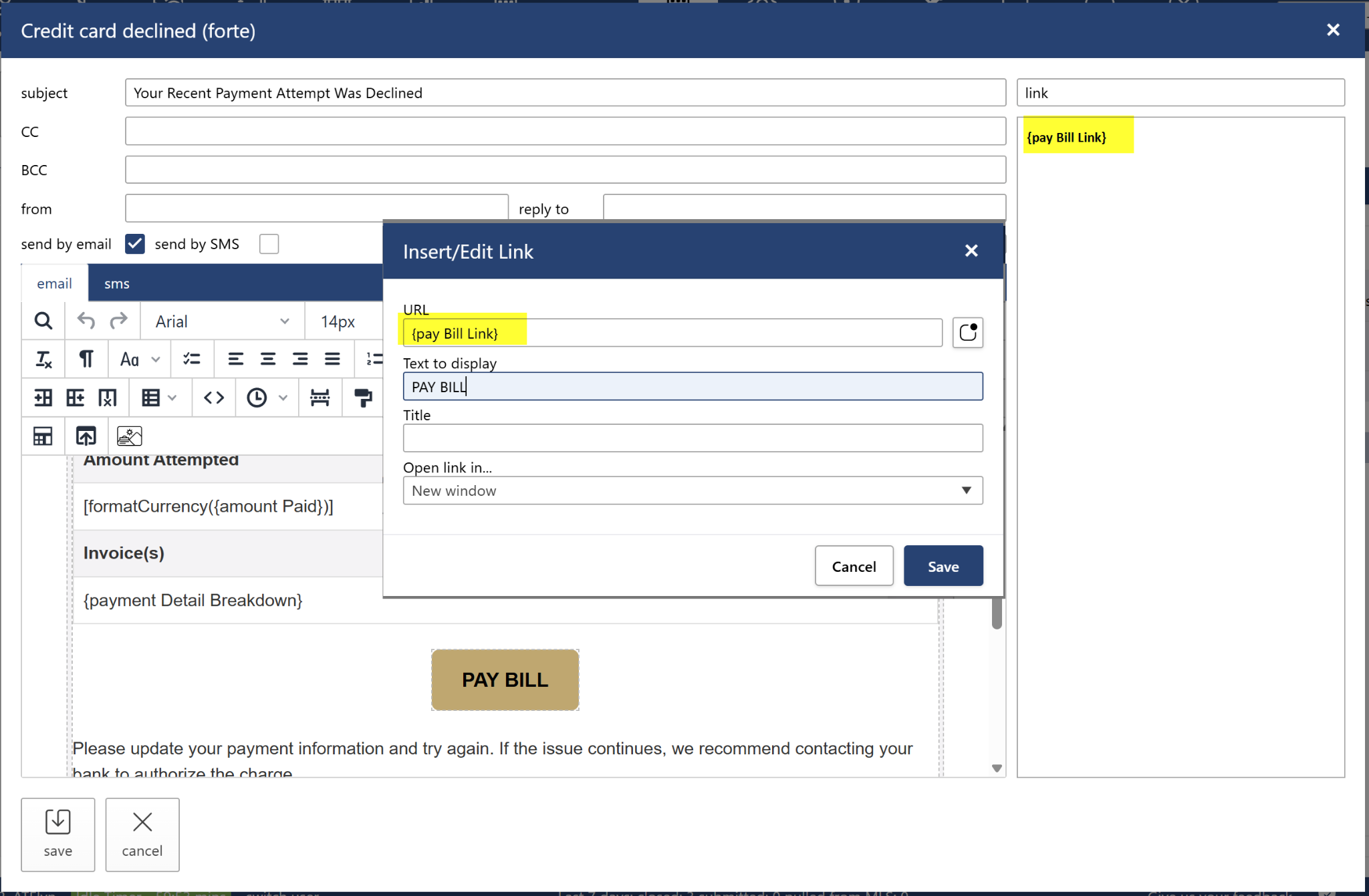
AR Payment Notifications — Pay Bill Link Now Available
The {PayBillLink} merge field is now available in all AR Payment notification templates, giving agents and customers a direct one-click link to their payment portal right from within the notification. The link works in both email and SMS versions of the notification.
When an agent's credit card is declined, they will now receive a single consolidated notification instead of a separate email for every declined invoice. The notification includes the Pay Bill link so agents can log in and resolve the payment immediately without any extra steps.
A couple of things to note:
The payment link is unique to each agent and will display all of their open balances — not just the invoice that declined.
This notification applies to new payment attempts only. Past declined transactions will not trigger a retroactive alert.
A new Print button is now available on the Banking > Approve screen, making it easy to generate and download a detailed report of your approved and posted Bank Stream transactions without any extra steps.
How it works:
Navigate to Banking > Approve, apply your preferred filters — date range, bank account, company, and status — then click Print. The report opens in a new browser tab in a spreadsheet-style format, ready to save or print for your records.
The report includes all transaction details shown on the Approve screen, such as date, description, amount, GL account, office/agent, approval date, approved by, posted date, and more.
No setup required. The Print button is available by default to all users with access to the Banking > Approve screen.